Online Shop (Online Ordering)¶
The DiKAS online shop is your business's own ordering website: guests browse the menu with photos and options, order for pickup or delivery, and pay online or in cash — with no commissions to ordering platforms. Orders go straight to the POS and the kitchen monitor.
Activation: Admin → Settings → Operations → Online Ordering
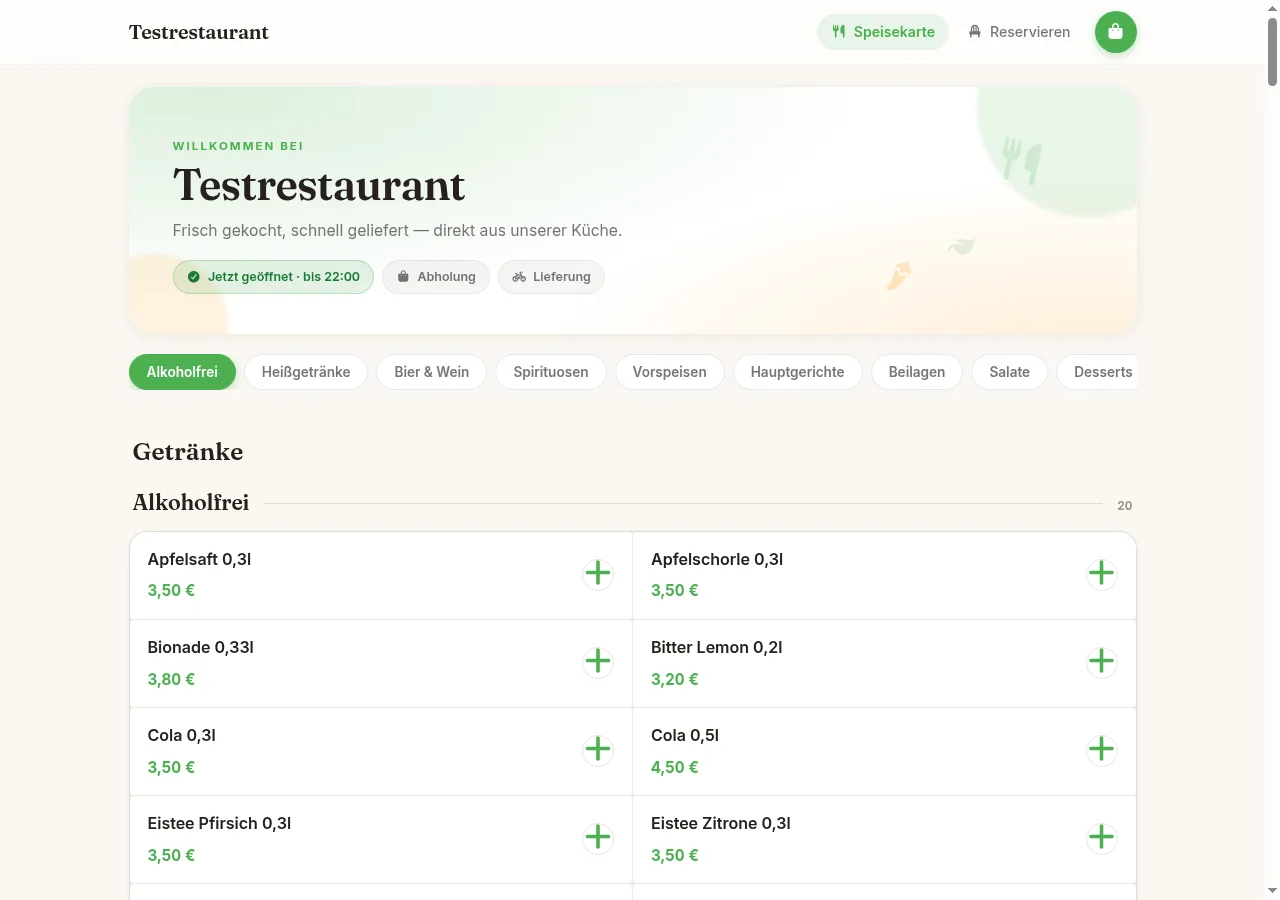
Table of Contents¶
- Feature Overview
- Shop Address
- Setup in 5 Minutes
- The Admin Screen
- Guest View
- Interaction with Other Modules
- Frequently Asked Questions
Feature Overview¶
| Feature | Description |
|---|---|
| Your own ordering website | Menu, cart, checkout — under your own address, no commissions |
| Pickup & delivery | Both order types can be enabled individually, with requested time and pre-ordering |
| Design templates | Four themes (incl. dark mode), custom colors, fonts, logo and banner |
| Delivery zone check | Addresses are validated live against your delivery zones at checkout (incl. fee) |
| Delivery fee on the receipt | With the setting "proportional to the order" ("anteilig nach Bestellung"), the delivery fee is split across the tax rates according to the food and drinks ordered — see Tax on the Delivery Fee |
| Online payment | Stripe (card, Apple Pay, Google Pay) — or cash |
| Article visibility | Hide groups or individual articles from the shop |
| Live order status | Guests track their order on a status page (Received → Ready) |
| Legal pages | Imprint, privacy, terms, withdrawal with generator and placeholders |
| Opening hours | Weekly hours with breaks and special days — no orders outside hours |
| Minimum order value | Shown in cart and checkout, validated server-side |
Shop Address¶
In the DiKAS cloud the shop is available under the guest domain:
The onlinename comes from your license. The current address is shown in the header of the admin screen as a chip — clicking copies it to the clipboard (this customer address is the one you pass on to your guests).
The "Shop ansehen" (view shop) button next to it opens the shop for testing locally on this device (/shop of its own origin) in a new tab — the customer domain *.order is only reachable from the internet, not necessarily from the POS device.
The same guest domain also hosts the online table reservation (/shop/reservierung) and the table self-ordering (QR codes).
Setup in 5 Minutes¶
- Admin → Settings → Operations → enable Online Ordering
- Open Admin → Online-/QR-Einstellungen (sidebar) and click One-Click Setup — adopts name and address from your master data and generates legal page templates
- Tab Design: choose a template, upload logo and banner
- Check the Opening Hours tab
- Tab "Zahlung" (payment): cash is active immediately; for online payment switch on "Online-Zahlung (Stripe) aktiviert" and enter the Stripe keys via the link "Hardware → Zahlungsoptionen"
- Tab Articles: review which groups should be visible online
- Save — done. Use "Shop ansehen" to check the result locally on this device.
Tip: A good banner photo (landscape, approx. 1600×600 px) makes the biggest visual difference. Article photos are managed per article in the article editor under the Images tab (automatically optimized for the web on upload).
The Admin Screen¶
Admin → Online-/QR-Einstellungen (sidebar; the page itself is headed "Online-Shop Einstellungen"). The header with shop address (customer chip for copying), "Shop ansehen" (local test preview) and Save stays visible while scrolling — saving applies to all tabs at once. Rarely needed fields only appear in expert mode (toggle in the admin navigation).
General Tab¶
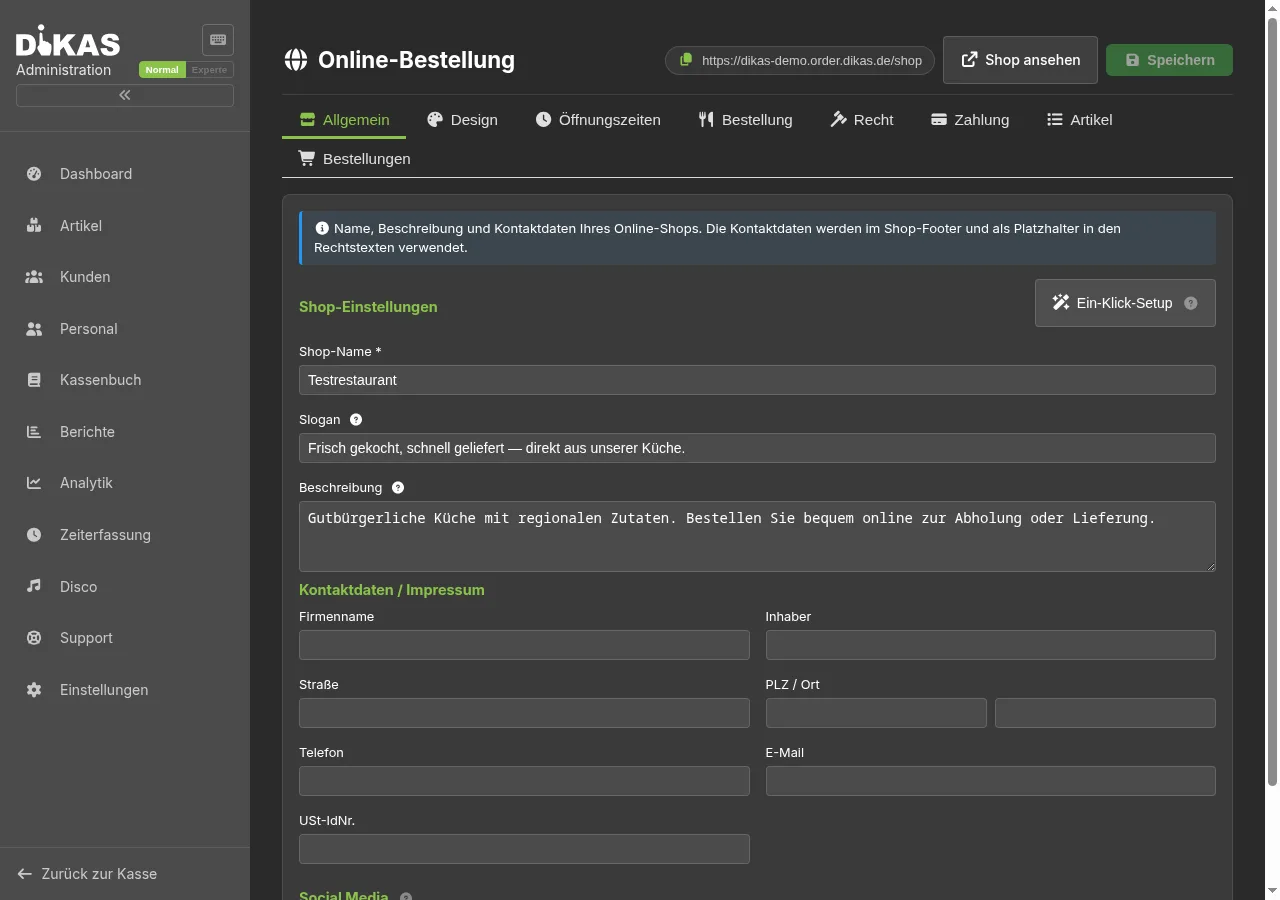
- Shop name (required), slogan (shown in the menu header) and description (shop footer)
- Contact / imprint data: company name, owner, address, phone, e-mail, VAT ID — shown in the footer and used to fill the legal page placeholders
- Social media: links to Facebook, Instagram, TikTok, X, YouTube or WhatsApp — shown as icons in the shop footer
- Expert: subdomain, custom domain, iFrame embedding, trade register, supervisory authority
Design Tab¶
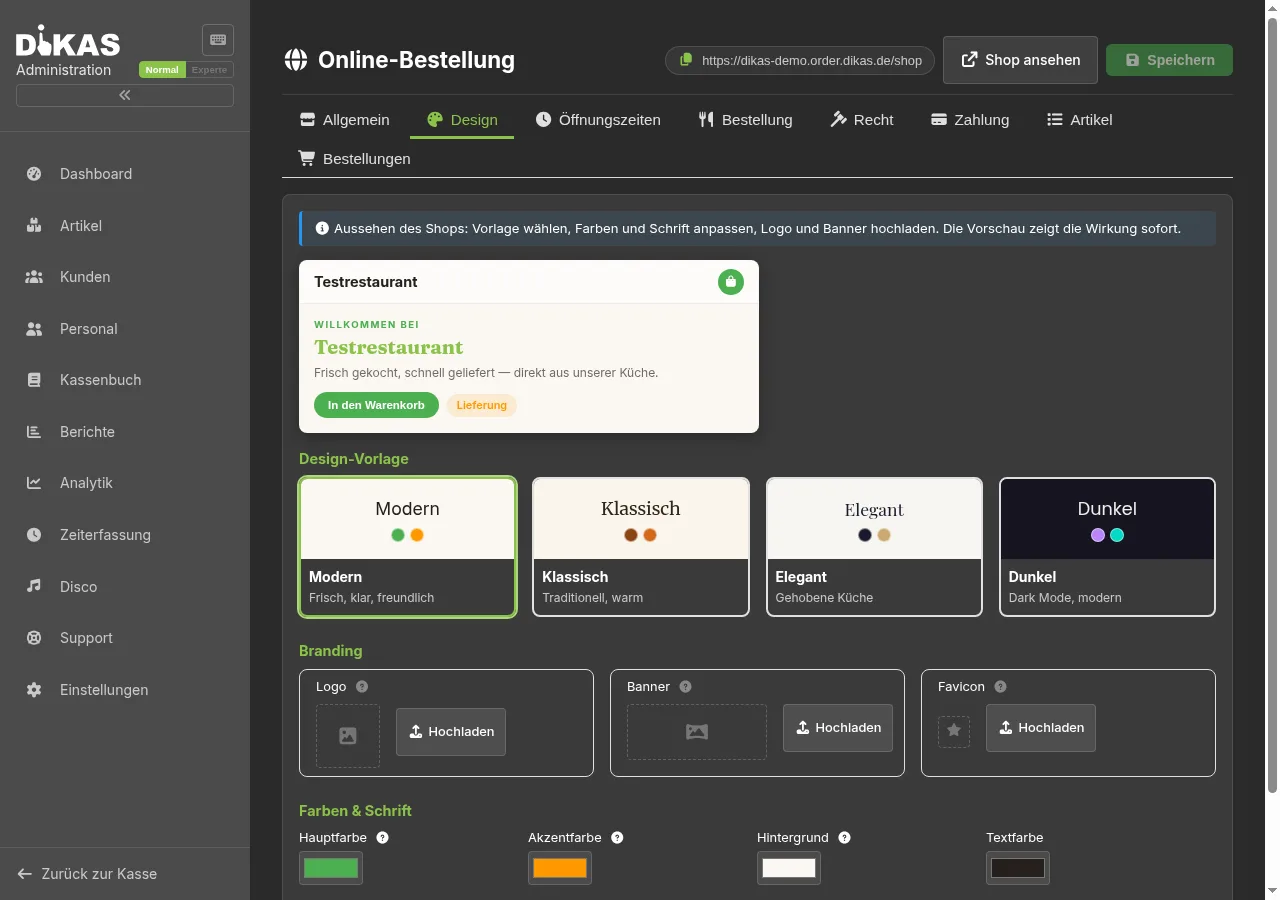
- Live preview: shows colors, font, logo and banner immediately, without saving
- Design templates apply a complete palette (colors, background, font):
| Template | Character | Font |
|---|---|---|
| Modern | Fresh, clear, warm cream | Inter |
| Classic | Traditional, warm browns | Merriweather |
| Elegant | Fine dining, subtle | Playfair Display |
| Dark | Dark mode, modern | Poppins |
- Branding: logo (square, at least 256×256 px), banner (landscape, approx. 1600×600 px — the mood image above the menu and the reservation page; with the Also show on the QR table menu switch it also appears at the top of the table menu) and favicon (browser tab icon)
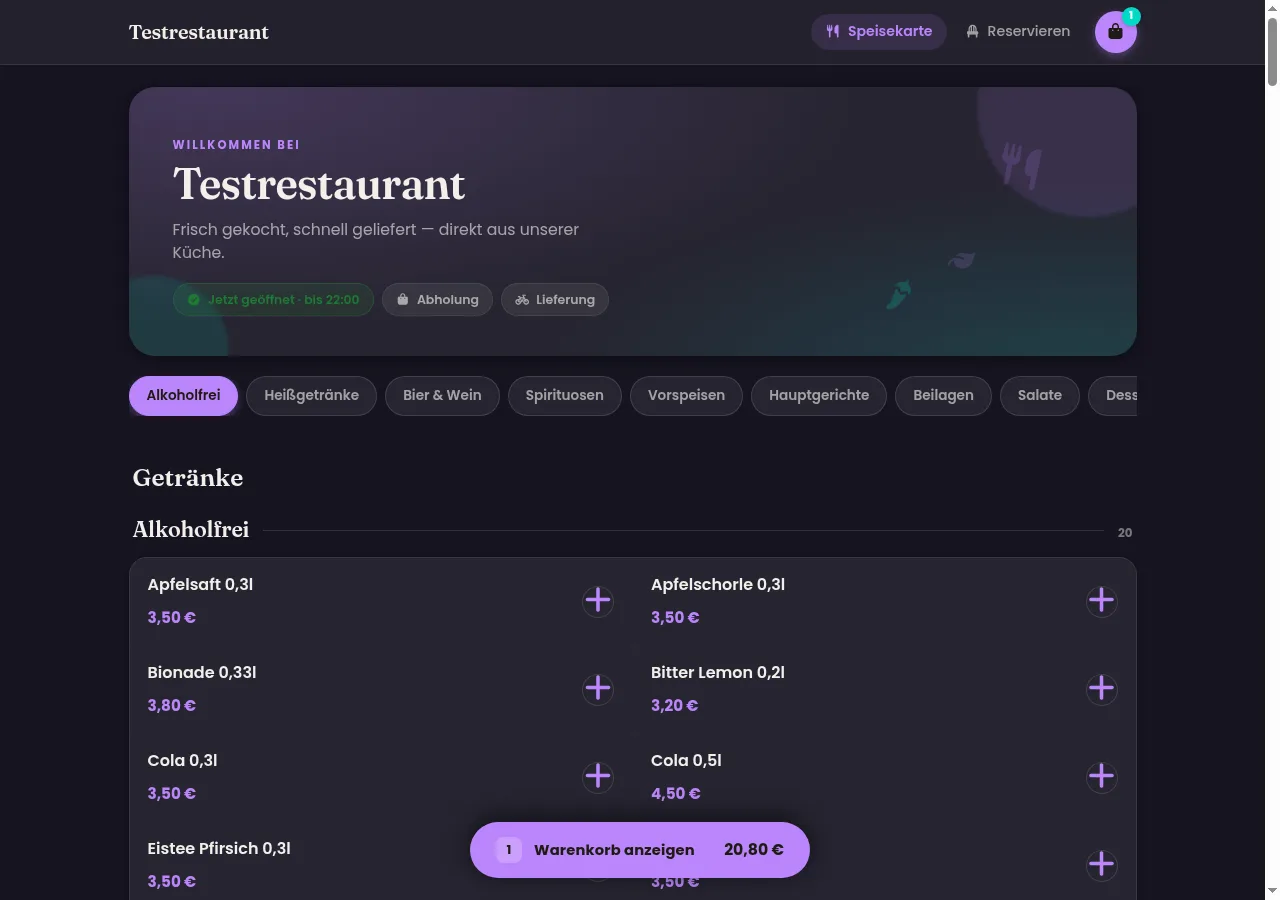
- Colors & font: primary and accent color, background and text color freely selectable. Dark backgrounds automatically produce a complete dark-mode shop — cards, lines and shadows adapt
- Fonts are bundled locally (no Google CDN, GDPR-friendly)
- Expert: customization level and custom CSS
Opening Hours Tab¶
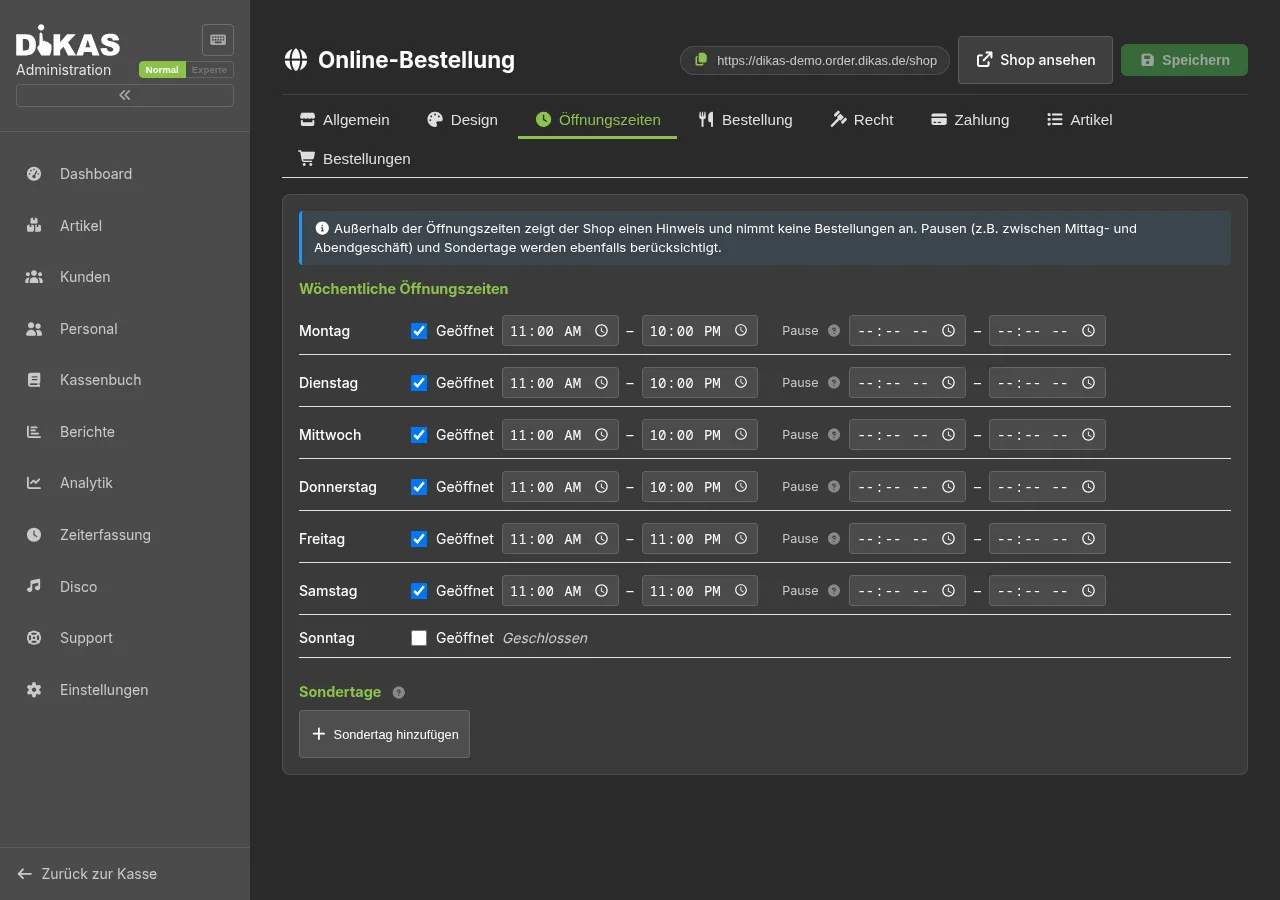
- Weekly hours per weekday with an optional break (e.g. 14:30–17:00 between lunch and dinner service)
- Special days: holidays or company vacation — either fully closed or with different hours; they take precedence over the weekly hours
- Outside the hours the shop shows a notice ("Currently closed — we reopen …") and does not accept orders
Ordering Tab¶
- Pickup and delivery can be enabled individually
- QR table ordering is no longer switched here but under Settings → Operations → tab Self-Order → block QR table ordering (see Table self-ordering)
- Manual confirmation: orders must be accepted before the guest receives a confirmation
- Guest checkout without registration: allows ordering without an account
- Customer accounts enabled: unlocks sign-in/registration in the shop — logged-in customers see their order history and can reorder with one click (see Customer account under the guest view)
- Minimum order value: shown to the guest in cart and checkout ("X € to go") and validated server-side
- Lead time: earliest pickup/delivery time after the order arrives (your usual preparation time)
- Pre-order max. days: how far in advance a requested time can be chosen
- Ø preparation time (default 15 minutes), thresholds for normal/high load (default 3 and 8 open kitchen orders) and "Bei Überlast schließen" (close when overloaded): basis of the displayed waiting time (see Guest view)
Legal Tab¶
- HTML editor for imprint, privacy policy, terms and withdrawal policy
- Insert placeholders (company name, address, …) via dropdown — they are automatically filled with your contact data in the shop; the preview shows the result
- Generate all creates legal templates for all four texts (with confirmation, existing texts are overwritten)
Payment Tab¶
Tab "Zahlung" (the labels in this screen are German):
- Cash payment — switches "Barzahlung bei Abholung" (cash on pickup) and "Barzahlung bei Lieferung" (cash on delivery, only with the delivery service module); no further setup
- Online payment (Stripe) (credit card, Apple Pay, Google Pay) — switch "Online-Zahlung (Stripe) aktiviert"
- PayPal — switch "PayPal aktiviert": the guest shop then offers PayPal alongside Stripe (redirect to PayPal, return to the status page; the payment is confirmed server-side). Both methods charge in your business's currency.
- Prepayment required ("Sofortzahlung erforderlich") — toggled separately for delivery and pickup: when on, cash is hidden for that order type and the guest must pay online (Stripe). Requires Stripe payment to be enabled.
Credentials are not entered in this tab but via the link "Hardware → Zahlungsoptionen" at the bottom of the tab (Admin → Settings → Hardware → Payment options): section Stripe with Secret Key and Publishable Key — "Verbindung testen" (test connection) verifies the configuration, wrong key formats are flagged immediately — and section PayPal with Client ID and Client Secret.
Payment confirmation
DiKAS verifies a completed online payment server-side directly with Stripe as soon as the guest lands on the order status page — the order is then marked paid. In addition, DiKAS reconciles open online payments with Stripe in the background every two minutes, so an order is recognised as paid even if the guest closes the browser early.
Articles Tab¶
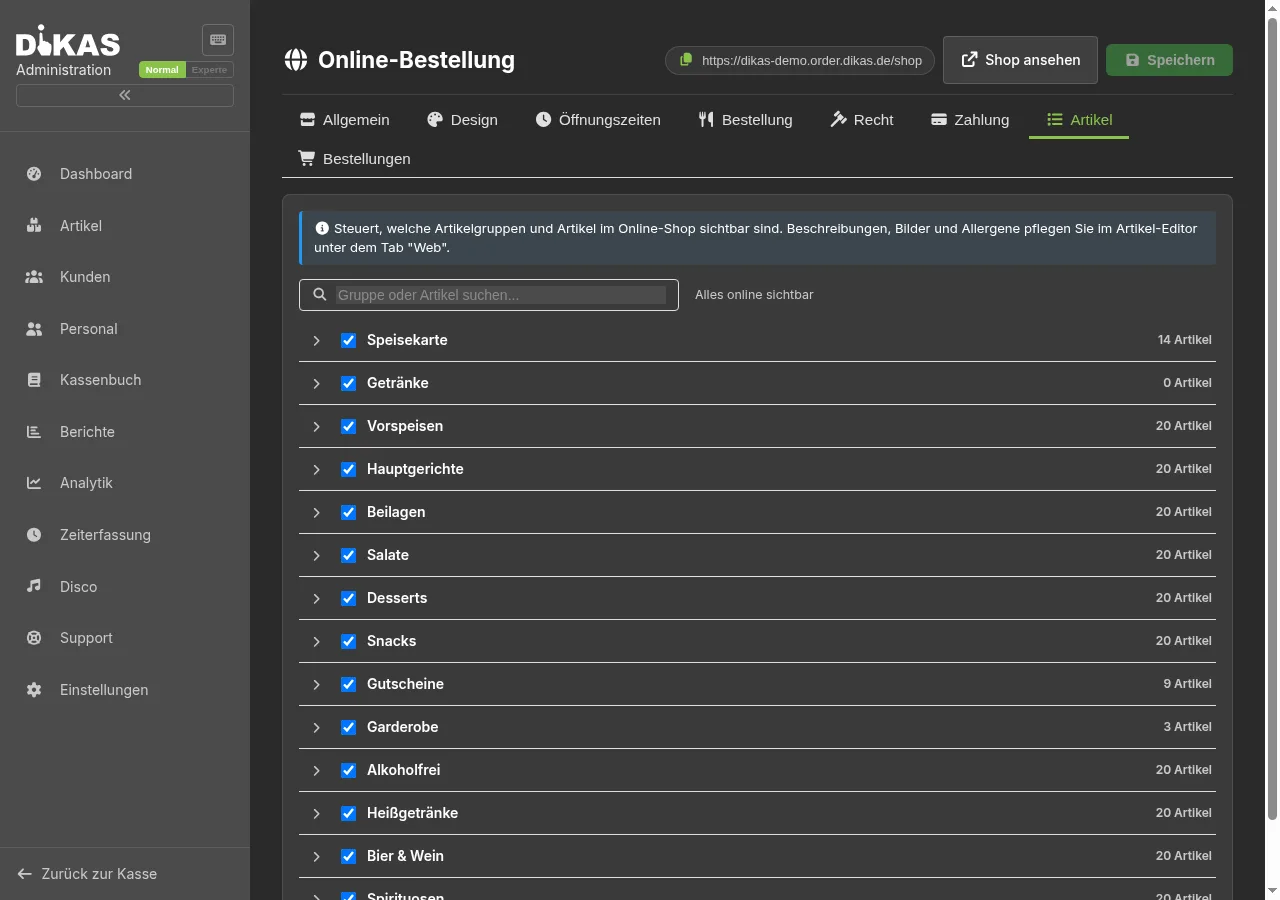
Controls what appears in the shop: hide entire groups or individual articles via checkbox (e.g. wardrobe or internal articles). Hidden entries are marked and struck through; the search filters groups and articles.
Descriptions, allergens and "visible in online shop" per article are managed in the article editor → Web tab; the photos in the Images tab (one central gallery for POS and shop).
Orders Tab¶
Accept incoming orders or reject them with a reason (the reason is shown to the guest on the status page). Accepted orders automatically appear in the kitchen monitor.
💡 Pickup/delivery orders are handled in practice directly in the delivery service: they show up there immediately in the Online tab (like platform orders), are accepted and run through the delivery workflow incl. driver management. If an already paid order is rejected/cancelled, DiKAS refunds automatically.
Guest View¶
Menu¶
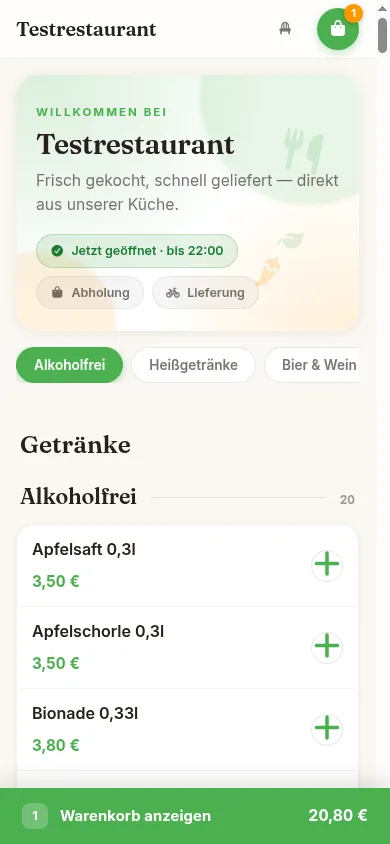
The start page shows a hero section (banner photo or decorative gradient) with status chips: Open now · until 22:00, Pickup, Delivery, and the minimum order value if set. Below it the menu with category navigation (follows while scrolling), search, article photos and labels (vegan, vegetarian, gluten-free, spiciness).
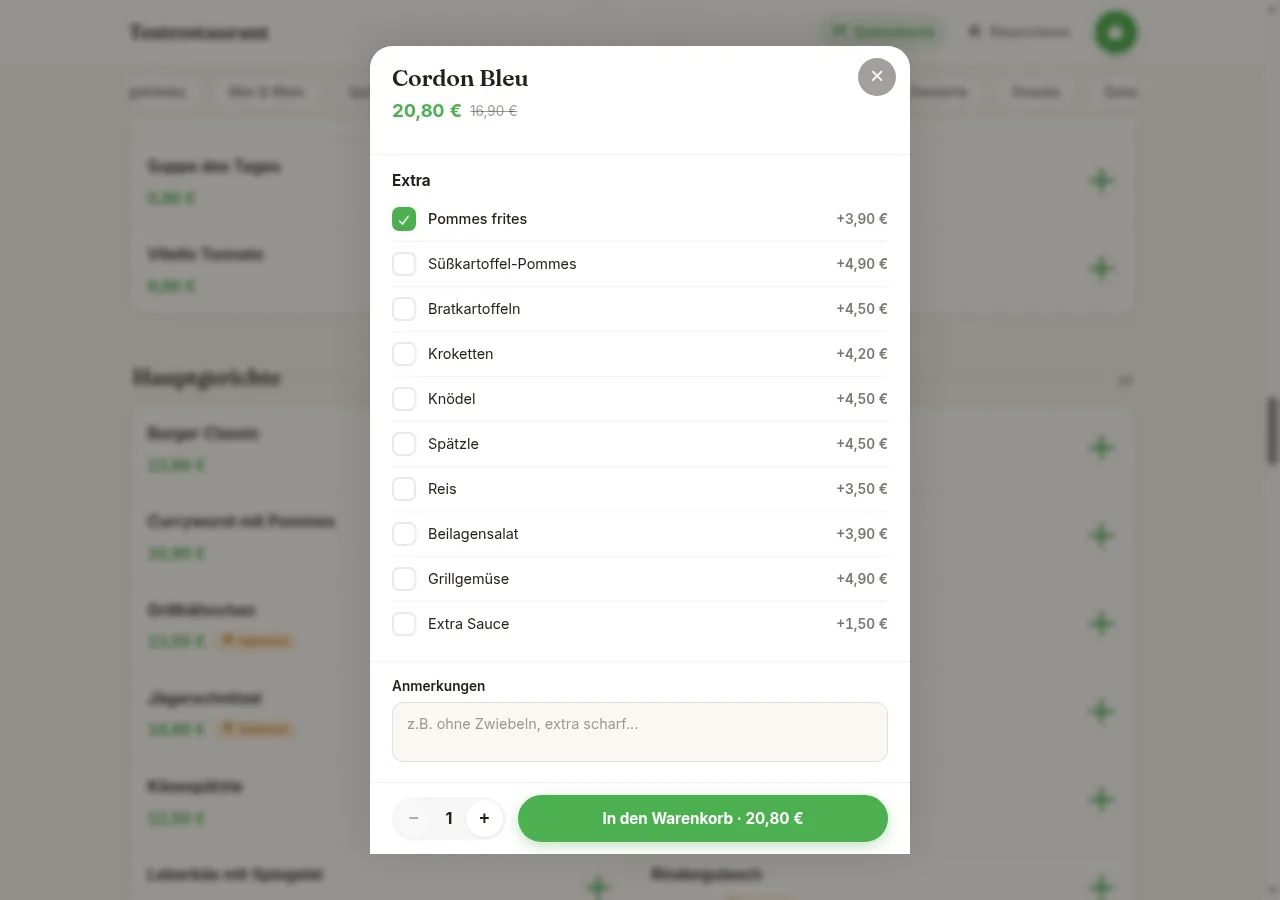
Tapping an article opens the article detail with photo, description, ingredients, options (incl. surcharges and included quantities) and a free-text field for notes ("no onions").
Waiting time from the kitchen load: The start page and cart show "Pickup from ~18:40 · Delivery from ~19:10". The time results from the currently open kitchen orders times the Ø preparation time (Ordering tab), capped at 90 minutes; for delivery the default delivery time is added. The checkout does not allow a requested time before this point. At very high load the shop can temporarily block the order button ("busy") if "Bei Überlast schließen" is active. The kitchen load is only counted if the kitchen monitor is switched on and the kitchen ticks off items — otherwise only the Ø preparation time applies.
"Same as last time": Returning guests see a tile below the hero section with their last order — with an account the most recent completed order, without an account the one remembered in the browser (only articles and quantities, no address). Before it is shown, it is checked against the current menu: articles no longer available or changed options are named, the rest goes into the cart with one tap.
"Goes well with it": Below the cart the shop suggests up to three articles — from the groups you enter on the article in the Web tab under "Passt dazu". Without maintenance, the shop suggests articles from the drinks group for a dish without a drink. Articles that are already in the cart, are "currently out" or have mandatory options are never suggested.
The shop is optimized for smartphones:
Cart & Checkout¶
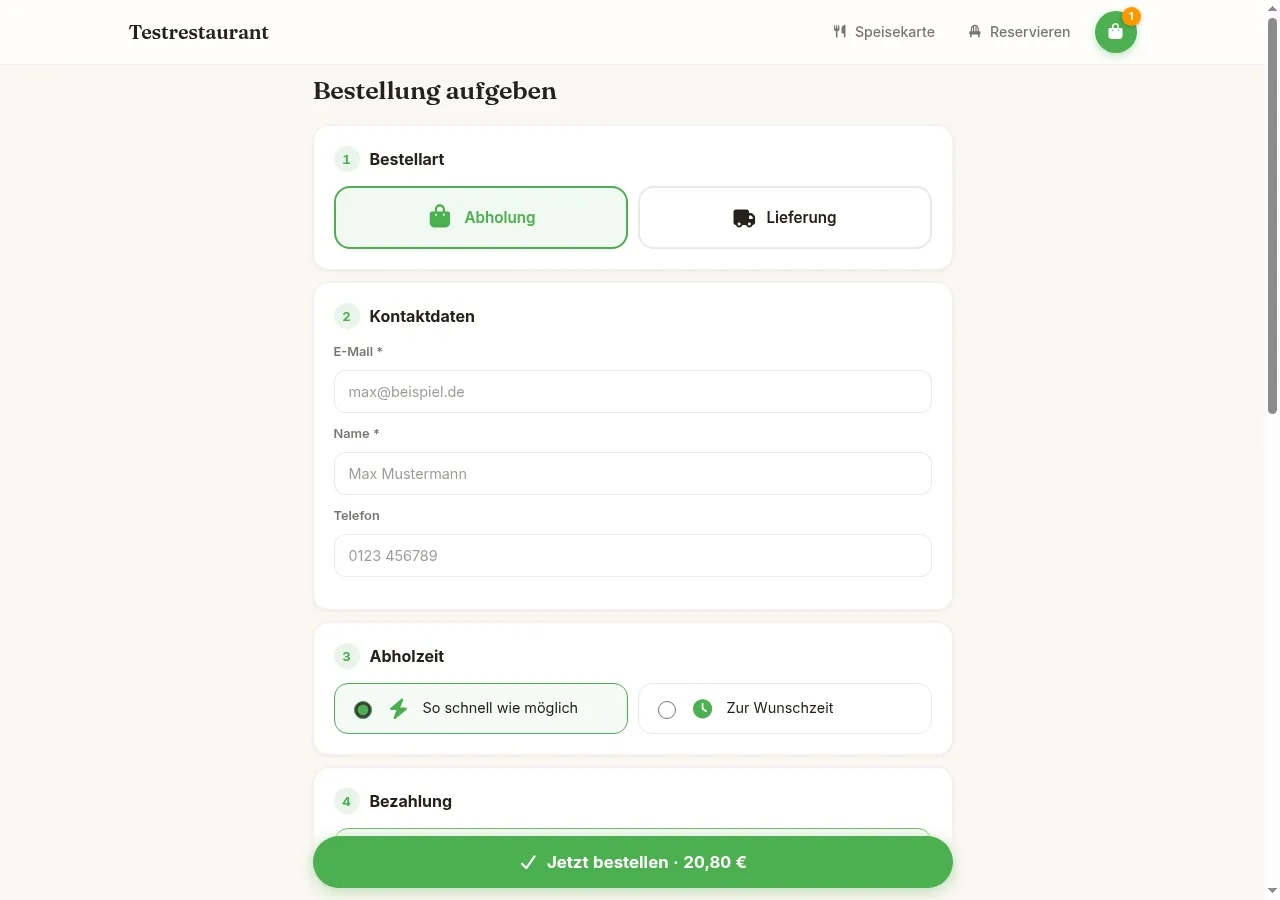
The checkout guides through the order in numbered steps:
- Order type — pickup or delivery
- Contact data — returning guests are recognized by their e-mail address; name/phone/address are prefilled ("Welcome back")
- Delivery address (delivery only) — with ZIP/street autocompletion, plus floor, doorbell and a delivery note that the driver later sees on their stop card; the address is validated live against your delivery zones, showing zone, delivery fee and estimated delivery time. The zone is determined by ZIP or — without a ZIP list — by the actual driving distance. Addresses outside the delivery zones are rejected; if a zone has its own minimum order value, it must be met
- Pickup/delivery time — "as soon as possible" or a requested time
- Payment — online (Stripe; PayPal, if switched on) or cash (if allowed for the order type; with prepayment required only online). With online payment the guest can add a tip (percentage, round up or free amount) — it is included in the amount paid and appears on the receipt
- Notes and order summary
Order Status¶
After submitting, the guest sees a status page with order number and live progress: Received → Confirmed → … → Completed. Which intermediate steps (preparation, ready/on the way) are shown depends on the configured workflow — in the lean default the order goes from "Confirmed" straight to "Completed". The page refreshes automatically (a status change appears within a few seconds) and shows the estimated ready time.
Only the complete link opens the status page
The address of the status page contains an access key. Only someone with the complete link — from the confirmation page, the confirmation e-mail or the QR code — can see the order, pay for it, redeem a voucher or cancel it. A link shortened by hand or an old bookmark that only contains the order number shows "Bestellung nicht gefunden." (order not found).
For guests this means: keep the confirmation page open or save the link. If a guest calls the business because they can no longer find their order, you can always see it in the Orders tab — the access key only applies to the guest view.
"Benachrichtigen, wenn fertig" (notify when ready): On the status page the guest can subscribe to a push notification (browser permission required; on the iPhone only if the shop is on the home screen as a web app). They then receive a message as soon as the order is ready or on its way — exactly once per status, in their language. If e-mail sending is set up in the business, a status e-mail is sent as well. The button only appears if push notifications are enabled for your instance.
Delivery — the driver is coming: If "Standort während der Tour" is switched on under delivery service, the status page additionally shows, when "On its way", "Your driver is n stops away — about m min" or "comes to you next" — without a map and without a position, only the number of stops and minutes. If the driver presses "I'll be there in 5 min", the guest receives the push message "Your order arrives in 5 min".
Customer account¶
If Customer accounts is enabled in the Ordering tab, guests can sign in or register in the shop (e-mail + password, icon in the top right).
- Benefits of signing in: contact and delivery details are pre-filled at checkout, and the full order history is available under My account → My orders.
- Reorder: every past order has a "Reorder" button. Its items are validated against the current menu and added to the cart — at the current price; items no longer available or with changed options are skipped and briefly listed. The guest can then adjust and order as usual for pickup or delivery.
- Guest becomes account: right after a guest order the status page offers "Create account?" — the guest only sets a password. If someone registers with an e-mail they previously used as a guest, those earlier orders are automatically linked to the account.
- Download receipt / by e-mail: for every order the customer can download the receipt as a PDF or have it sent by e-mail. The receipt is generated on demand as a full, tax-itemized (and, if enabled, TSE-signed) receipt.
- Hospitality receipt (Bewirtungsbeleg, §4 (5) no. 2 EStG): via "Bewirtung" the customer can optionally enter the occasion and participants and download/e-mail the hospitality receipt. If the fields are left empty, the PDF contains the usual lines for filling in by hand.
- Guest checkout remains possible without an account (if allowed under Ordering). E-mail verification is not required for shop accounts.
Interaction with Other Modules¶
| Module | Interaction |
|---|---|
| Delivery service | Pickup/delivery orders from the shop appear — like platform orders — directly in the delivery service's Online tab (immediately on submission, or after online payment) and are accepted and processed there |
| Kitchen monitor | Accepted orders automatically appear in the kitchen |
| Table self-ordering | Uses the same online menu and the same payment providers |
| Online ticketing | Event tickets are sold in the same shop |
| Table reservation | Reservation page under the same guest domain, linked in the shop menu |
If the online shop is switched off, table reservation and QR table ordering only show "Closed" according to their own switch — no longer according to the online shop's.
Frequently Asked Questions¶
Do I need my own website?
No. The shop is a complete website at {onlinename}.order.dikas.de. An existing website can simply link there (or embed the shop via iFrame, expert option).
What does an order through the shop cost? DiKAS charges no commissions. For online payments only the usual fees of the payment provider (Stripe) apply.
Can I test the shop without going live?
Yes — the shop also runs locally at /shop of your DiKAS installation. With Stripe test keys (pk_test_…/sk_test_…) payments can be tried out safely.
Why don't guests see an article? Four possible reasons: the group or article is hidden in the Articles tab, the article is not released for the online shop in the article editor (Web tab), "Not in menu" is switched on for the article, or the article is inactive.
What happens to orders outside opening hours? The shop shows "Currently closed" with the next opening time. The order button is disabled, and the server additionally rejects orders outside the hours.
Can guests cancel? Self-cancellation in the shop is not available — guests call the restaurant. The business then rejects the order in the Orders tab with a reason; the guest sees the reason on their status page.