Customers
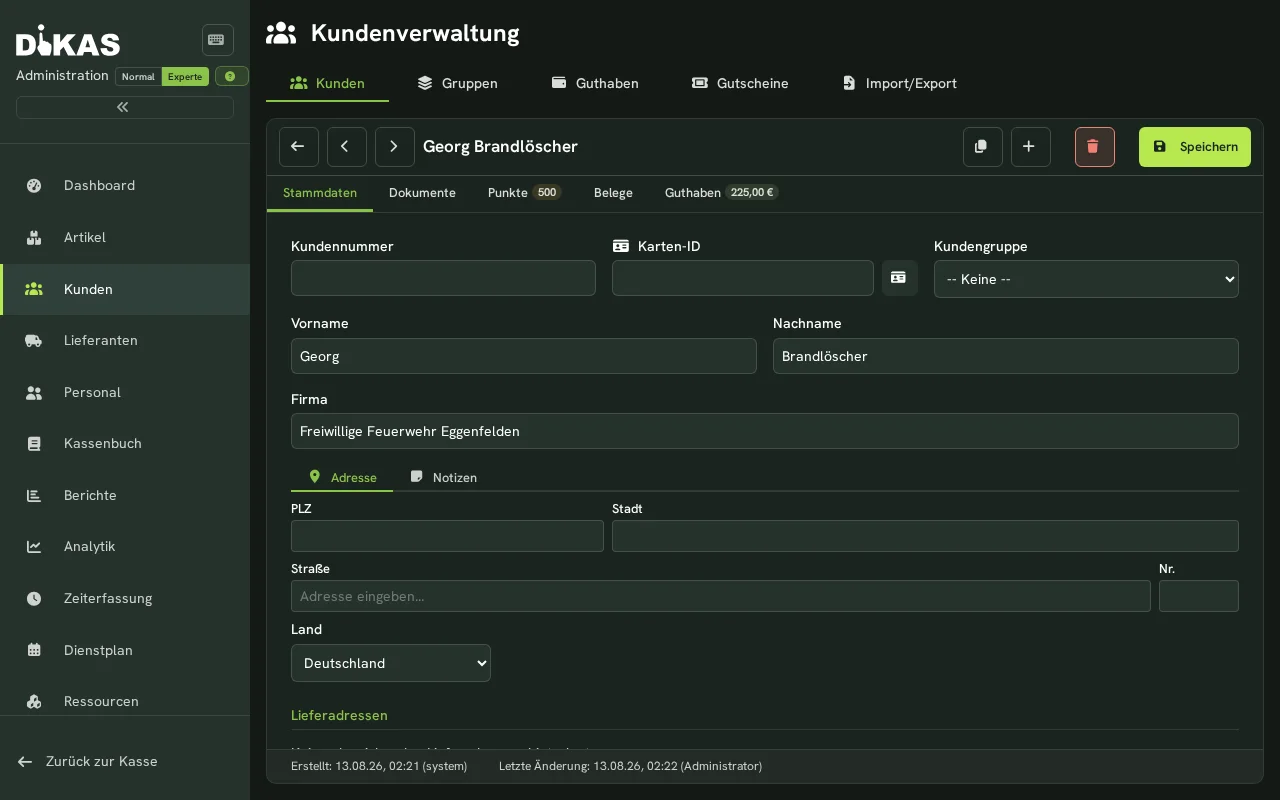
Customer management is one of the most comprehensive modules in DiKAS. Here you manage master data, corporate customers, credit with a dual-balance system, loyalty points, invoices, subscriptions, documents and delivery addresses. Over 60 fields per customer enable complete management from private customers to corporate customers with SEPA mandates.
Admin → Customers
💡 In Normal mode (toggle top right) only the most important tabs are visible: Master data, Balance, Receipts, Invoices. The Points, Subscriptions, Documents, Licenses tabs and the bank/SEPA section of the master data appear only in Expert mode. Help icons (?) explain e.g. card no., SEPA mandate, credit limit and payment term.
Customer Overview
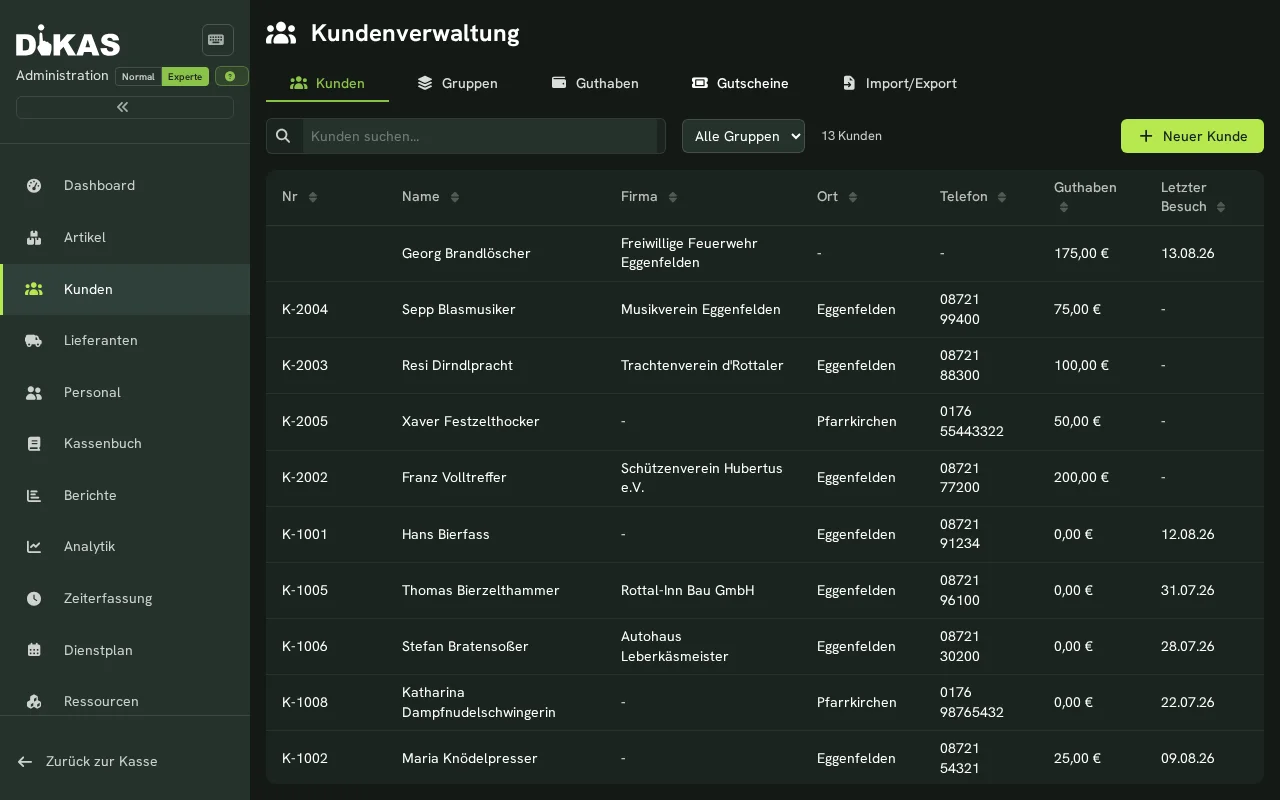
The customer list shows all created customers with: - Name and customer number - Credit (cash account + bonus account) - Loyalty points - Last visit (automatically updated) - Status (active/inactive)
Searching for Customers
Enter in the search field: - Name (first or last name) - Customer number - Email address - Phone number - Company name - Card number (customer card)
Creating a Customer
"+ New Customer" → Tab "General":
Master Data
| Field | Example | Required? |
|---|---|---|
| First Name | Thomas | No |
| Last Name | Müller | Yes |
| Customer Number | 10042 | Auto-generated |
| thomas@example.com | No | |
| Invoice Email | buchhaltung@firma.de | No (Fallback: Email) |
| Phone | 089 1234567 | No |
| Mobile | 0170 1234567 | No |
| WhatsApp Number | +49 170 1234567 | No |
| WhatsApp Opt-in | Yes / No | For marketing messages |
| Date of Birth | 15.06.1985 | No |
| Notes | Allergic, no celery | No |
Address
| Field | Description |
|---|---|
| Street / No. | Hauptstraße / 12 — the house number may be in its own No. field or (e.g. after an import) in the street; on invoices, quotes, delivery notes, e-invoices and emails it appears exactly once |
| Postal Code / City | 80331 München |
| Country | Deutschland |
| Geodata | Latitude / Longitude (for delivery service distance) |
Corporate Customer Fields
| Field | Description |
|---|---|
| Company Name | Company name (used as display name) |
| VAT ID | VAT identification number (triggers reverse charge for EU countries) |
| Discount % | Default discount for this customer |
| Credit Limit | Maximum open invoice amount |
| Allow Invoice Payment | Enable house tab payment |
| Do Not Dunning | No automatic dunning process |
SEPA / Bank Details
| Field | Description |
|---|---|
| IBAN | For SEPA direct debit |
| BIC | Bank identification |
| Bank Name | Name of the bank |
| SEPA Mandate Reference | Unique mandate number |
| SEPA Mandate Date | Date the mandate was granted |
| Payment Terms (Days) | Default payment deadline for invoices |
Customer Card
| Field | Description |
|---|---|
| Card Number | NFC card ID or customer card number |
| Card Deposit Paid | Whether a deposit was charged for the card |
Table booking (tap system)
The Balance/Credit area of the customer form contains the checkbox "Table booking (tap system)". It controls how a connected tap system (Tabletop) books pours made with this customer's card:
| Setting | What happens at the tap system |
|---|---|
| Checked | Every pour is added as an open item to the customer table. Identical pours (same article, same price) are combined into one item. Nothing is deducted from the balance — the table is settled later at the till as usual. |
| Not checked | The pour is paid immediately from the customer balance and a regular receipt is created. If the balance is insufficient, the pour is added as an open item to the customer table. |
Other cards at the tap system
- Unknown card: DiKAS automatically creates a customer "TableTop Unbekannte Karte" with this card. The card can then be topped up at the till.
- Staff card: If the card belongs to an employee, the pour is booked to a separate table named after the employee with the suffix "(P)".
- Cleaning card: Pours used to clean the lines are voided immediately — no revenue and no stock movement.
Customer Tabs in Detail
Tab: General
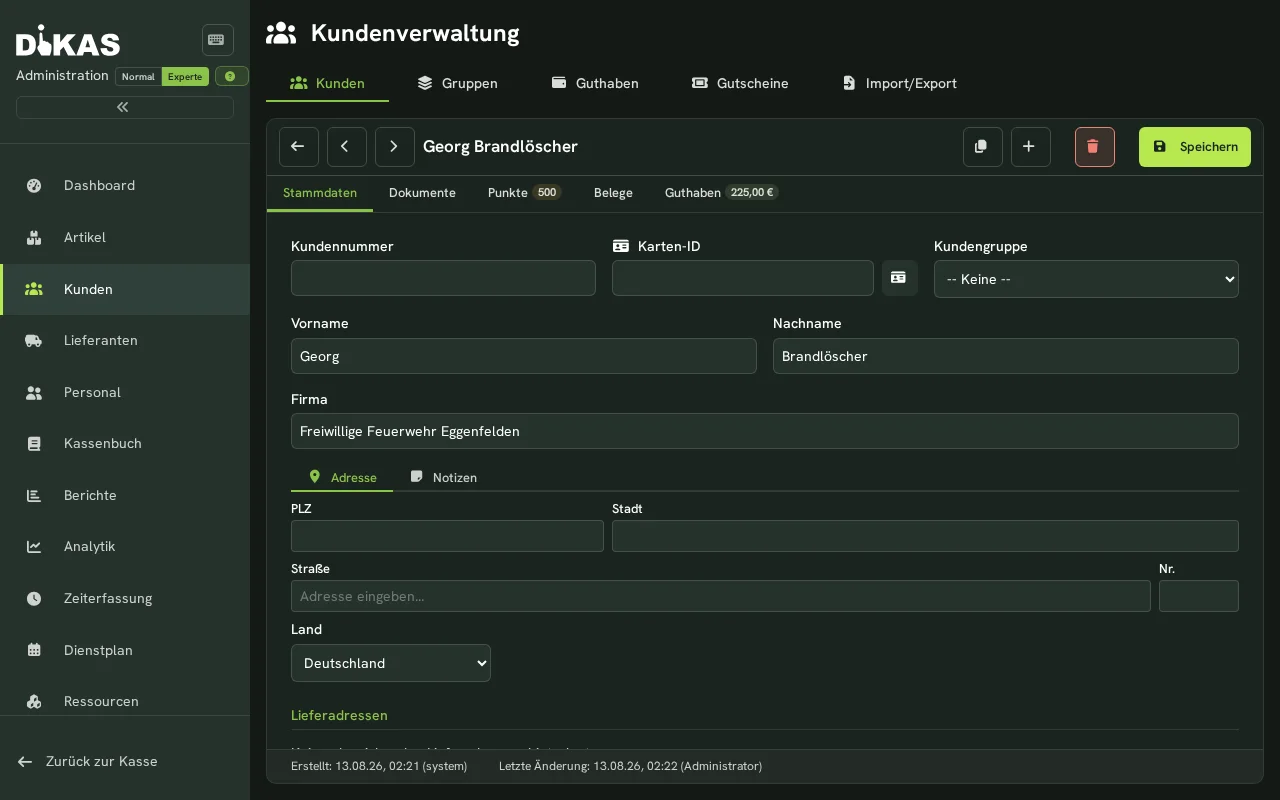
Master data, company information, SEPA data, customer group and special configuration (net mode, do not dunning, discount).
Tab: Credit
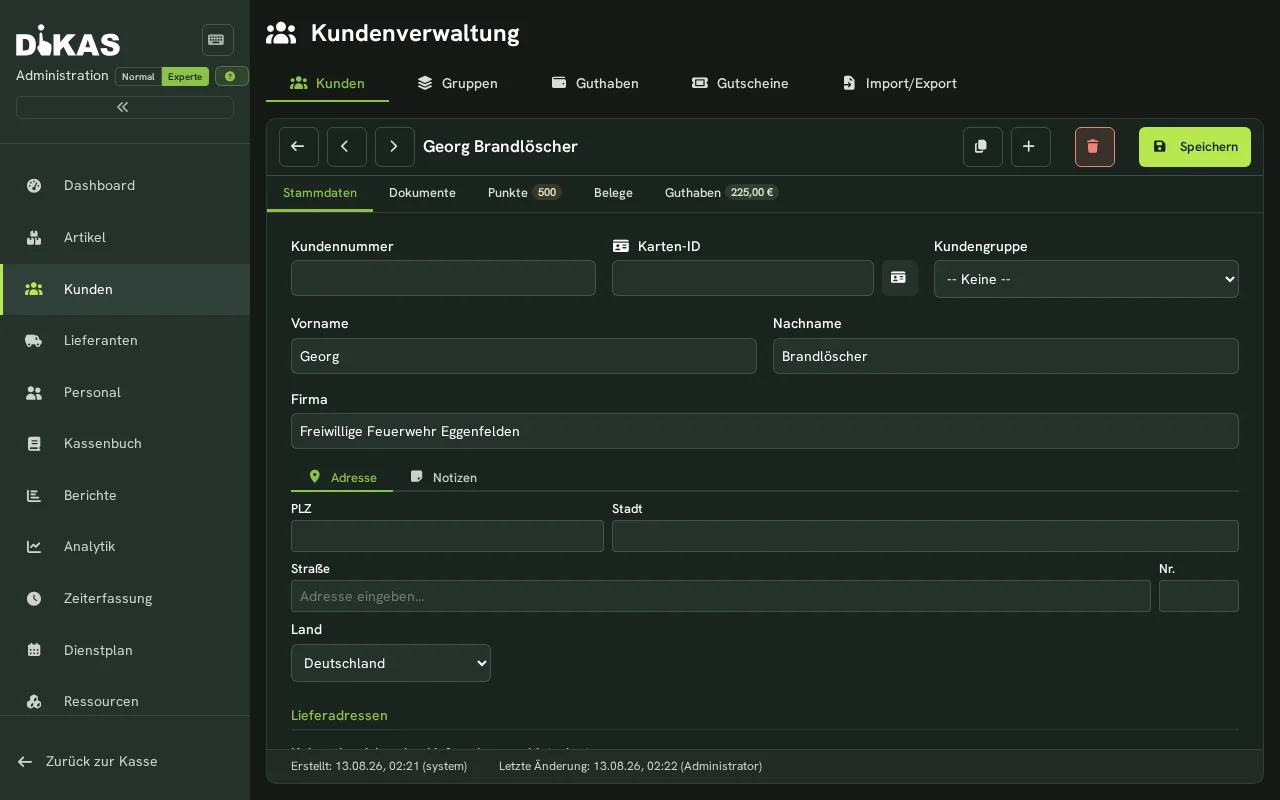
DiKAS manages a dual-balance system with separate accounts:
| Account | Description |
|---|---|
| Cash Account (AccountBalance) | Credit loaded by the customer |
| Bonus Account (BonusBalance) | Automatic bonus on top-up |
Top-up Bonus: If the business has configured e.g. 10% bonus on top-up, the customer receives an additional 10 EUR to the bonus account when loading 100 EUR. Both accounts are considered when paying — bonus account first, then cash account.
Payout: Only possible from the cash account (bonus credit cannot be paid out).
Transaction Types:
| Type | Description |
|---|---|
| Top-up (0) | Cash account top-up by customer |
| Usage (1) | Credit payment at the POS |
| Correction (2) | Manual adjustment |
| Bonus Top-up (3) | Automatic bonus on top-up |
| Bonus Usage (4) | Bonus credit used |
| Payout (5) | Cash account payout to customer |
Transaction History:
| Column | Description |
|---|---|
| Date | Time of the transaction |
| Type | Top-up, Usage, Correction, Bonus, Payout |
| Amount | Transaction amount |
| Cash Account After | Balance after transaction |
| Bonus Account After | Bonus balance after transaction |
| Receipt No. | Associated receipt |
Tab: Points
Loyalty points system (if enabled in settings):
- Current points balance
- Points history (earned, redeemed, corrected)
- Configuration: Points per euro (e.g. 1 point = 1 EUR)
| Transaction Type | Description |
|---|---|
| Earned (0) | Points earned through purchase |
| Redeemed (1) | Points redeemed as discount |
| Correction (2) | Manual adjustment |
Tab: Invoices
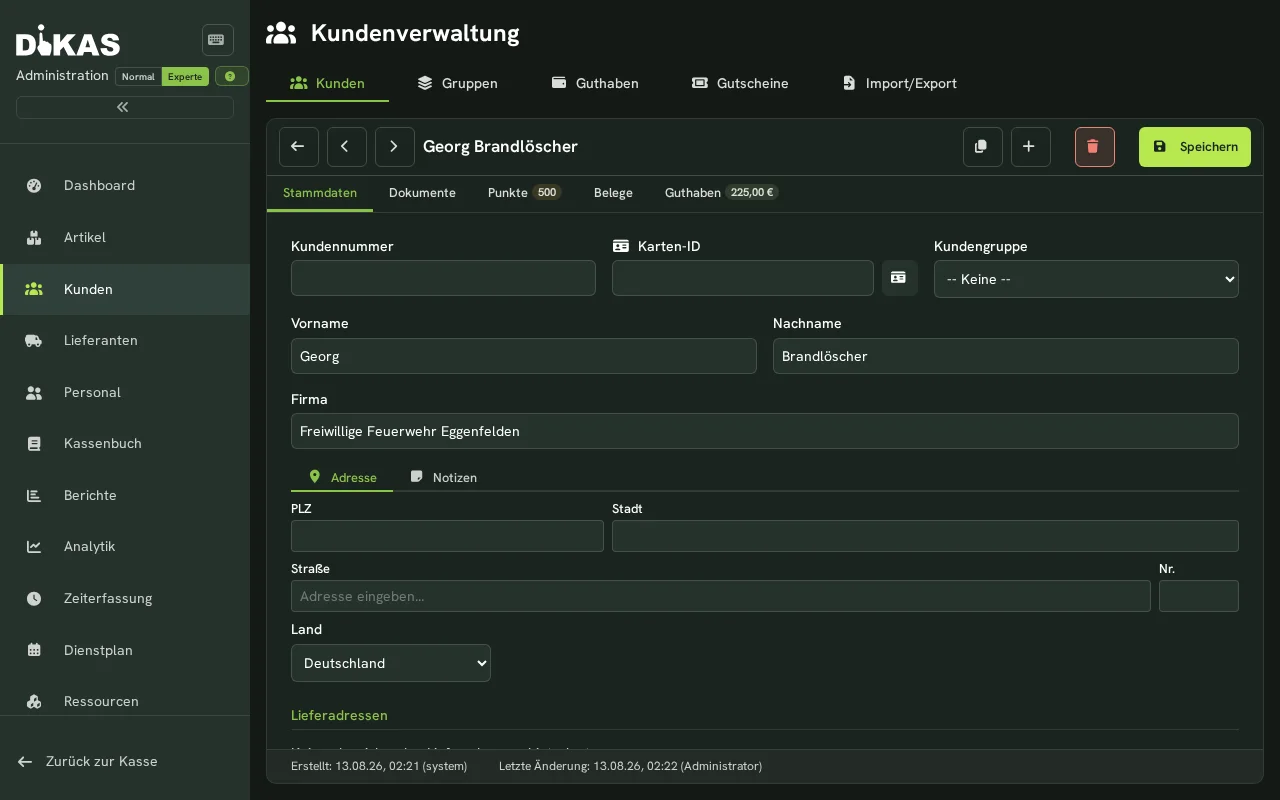
List of all customer invoices:
| Column | Description |
|---|---|
| Invoice No. | Sequential number |
| Date | Invoice date |
| Amount | Gross amount |
| Open Amount | Still outstanding |
| Status | Draft, Open, Paid, Overdue, Dunning 1/2/3 |
| SEPA | Direct debit status |
→ Invoices for details
Tab: Subscriptions
Recurring billing:
| Field | Description |
|---|---|
| Description | Name of the subscription |
| Amount | Billing amount |
| Interval | Monthly / Quarterly / Annually |
| Next Billing | Next invoice date |
| SEPA | Direct debit enabled |
| Net Mode | Reverse charge |
→ Subscriptions for details
Tab: Documents
Upload any documents to the customer:
- Contracts, ID copies, SEPA mandates
- Signed agreements
- PDF, Word, images (max. 5 MB per file)
Upload a Document: 1. Click "+ Document" 2. Select file (drag & drop possible) 3. Optional: Enter a title 4. "Upload"
Storage: CouchDB attachments or file system (depending on configuration).
Delivery Addresses
In the "Address" sub-tab of the master data, below the main address, you will find the "Delivery addresses" section. Use "Add delivery address" to add as many as you need:
| Field | Description |
|---|---|
| Label | e.g. "Office", "Home" |
| Street / House Number | Delivery address |
| Postal Code / City / Country | Delivery location |
| Geodata | Automatically determined via geocoding |
| Default | Mark as default delivery address |
Each delivery address has its own Country field; a new row takes the country of the main address. The default delivery address ("Default" ticked, or the only one on file) is also used in invoicing:
- In the invoice and quote it is pre-filled as the different delivery address; the other delivery addresses can be selected there.
- The delivery note for an invoice uses it if the invoice has no delivery address of its own.
- Subscription invoices take it over automatically.
Tab: Licenses
(Only if the license module is enabled)
Shows all licenses assigned to this customer — with modules, expiration date and activation status.
Customer Groups
Customers can be organized into groups (e.g. "Corporate Customer", "Regular Customer", "VIP"):
| Field | Description |
|---|---|
| Name | Group name |
| Default Discount | Automatic discount for all group members |
| Color | Color coding in the customer list |
| Sort Order | Display order |
Discount Cascade: Customer discount overrides group discount. If a customer has an individual discount of 15%, this applies — regardless of the group discount.
Last Visit
DiKAS automatically saves the date of the last visit with every payment (direct sale and table payment). This way you can see at a glance when a regular customer last visited — without any manual effort.
Customer Portal (optional)
If the customer portal is enabled, customers can log in themselves:
| Function | Description |
|---|---|
| Registration | Customer creates their own account |
| Login | Email + password or OAuth (Google, Facebook) |
| 2FA | Optional two-factor authentication (TOTP) |
| Invoices | View and download own invoices; the invoice detail shows a different delivery address next to the billing address |
| Credit | Account balance and transaction history |
| Password Reset | Self-service password reset via email |
Portal Invitation: Under Admin → Customers → [Customer] → "Send Portal Invitation" an invitation link is sent via email.
Deleting Customers
| Action | Description |
|---|---|
| Delete Customer | Soft delete (customer is deactivated, data is preserved) |
| Delete All Customers | Permanently remove all customers |
| Delete Customers Without Revenue | Only remove customers without associated receipts |
Next Step
→ Staff — Manage employees