Capture Receipts (Supplier Invoices & Receipts)
With receipt capture, you photograph incoming invoices and receipts right at the POS — the wholesaler's receipt, the delivery note from the beverage supplier, the tradesman's invoice. Instead of ending up in a shoebox, everything lands in DiKAS digitally, neatly sorted and ready for accounting.
Here's what that looks like in practice: Tuesday morning at Pizzeria Da Mario. The beverage supplier pulls up, the driver hands Mario the invoice and waits. Mario opens Menu → Receipts at the POS, taps "Add receipt", photographs the invoice — the AI automatically reads out the company, invoice number, and amount. A quick check, save, done. Less than 30 seconds, and the invoice is safely digitized before it gets lost in the lunch rush.
Where Do You Find Receipts?
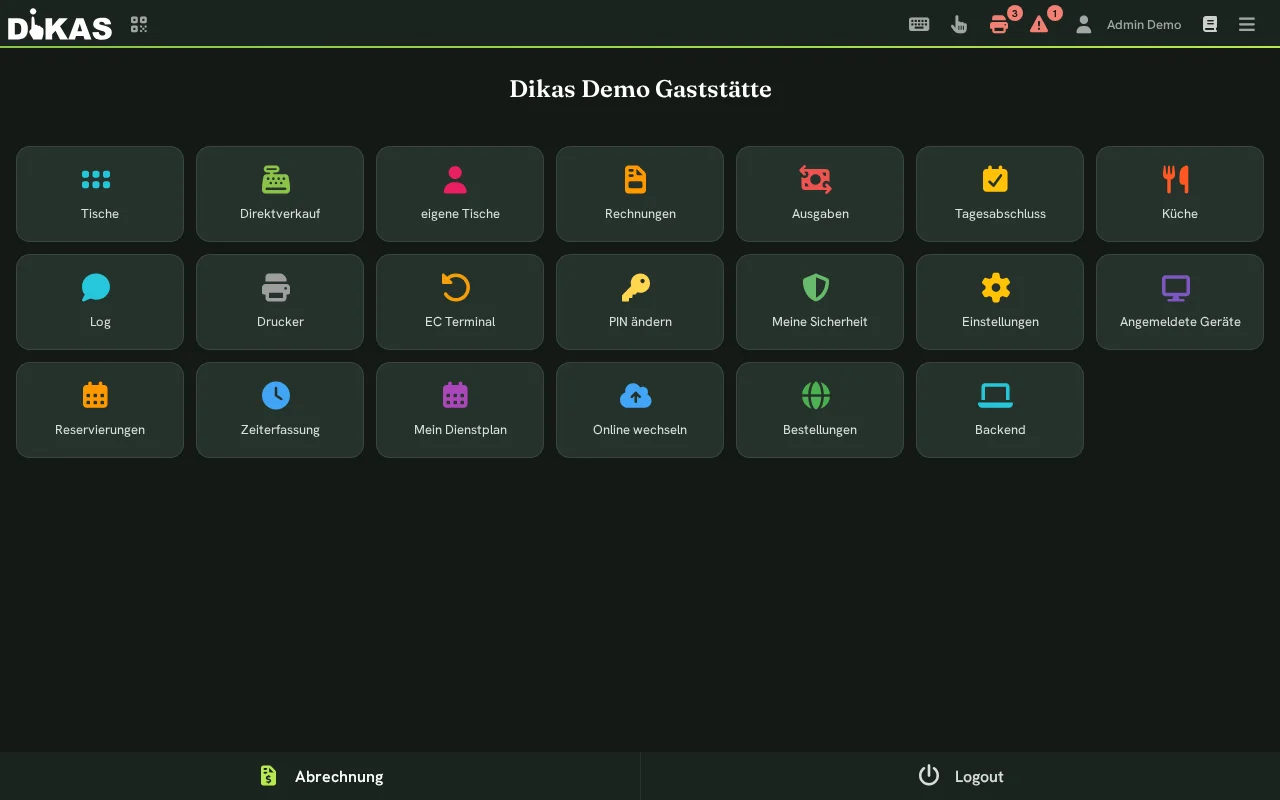
At the POS: Menu → Receipts. This menu item is visible to all staff who have the expense permission.
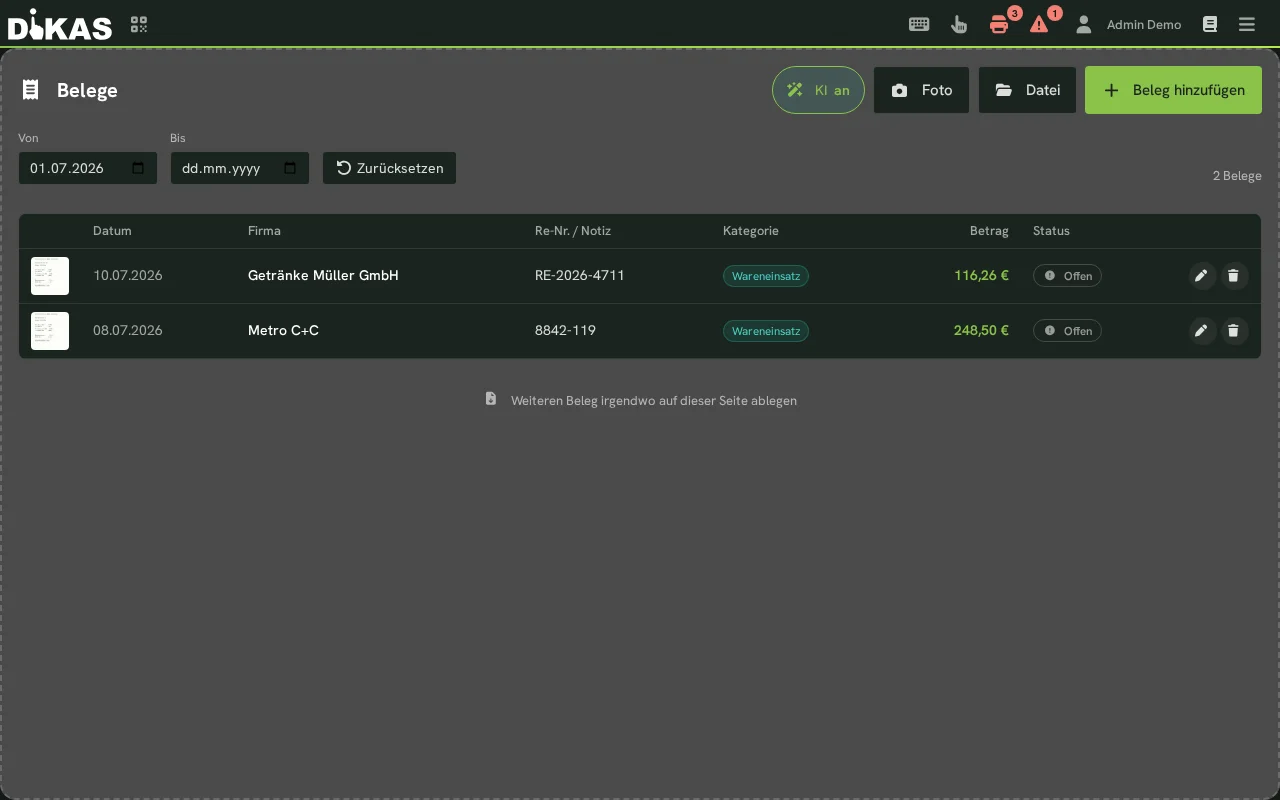
The overview shows all recorded receipts as tiles:
| Element | Description |
|---|---|
| Thumbnail | Miniature of the photo; a PDF icon for PDF files |
| Date | Receipt date |
| Amount | Invoice amount (if recorded) |
| Category | Assigned expense category |
| Note | Your free text, e.g. "Beverage delivery week 28" |
As long as nothing has been recorded yet, you'll see the note "No receipts recorded yet". Use "Delete" to remove a receipt again — with a confirmation prompt, so nothing disappears by accident.
Recording a Receipt — Step by Step
- At the POS: Menu → Receipts
- Tap "Add receipt"
- "Take photo" (camera opens) or "Select file" (images and PDF files)
- Wait a moment: the AI reads the receipt and pre-fills the empty fields
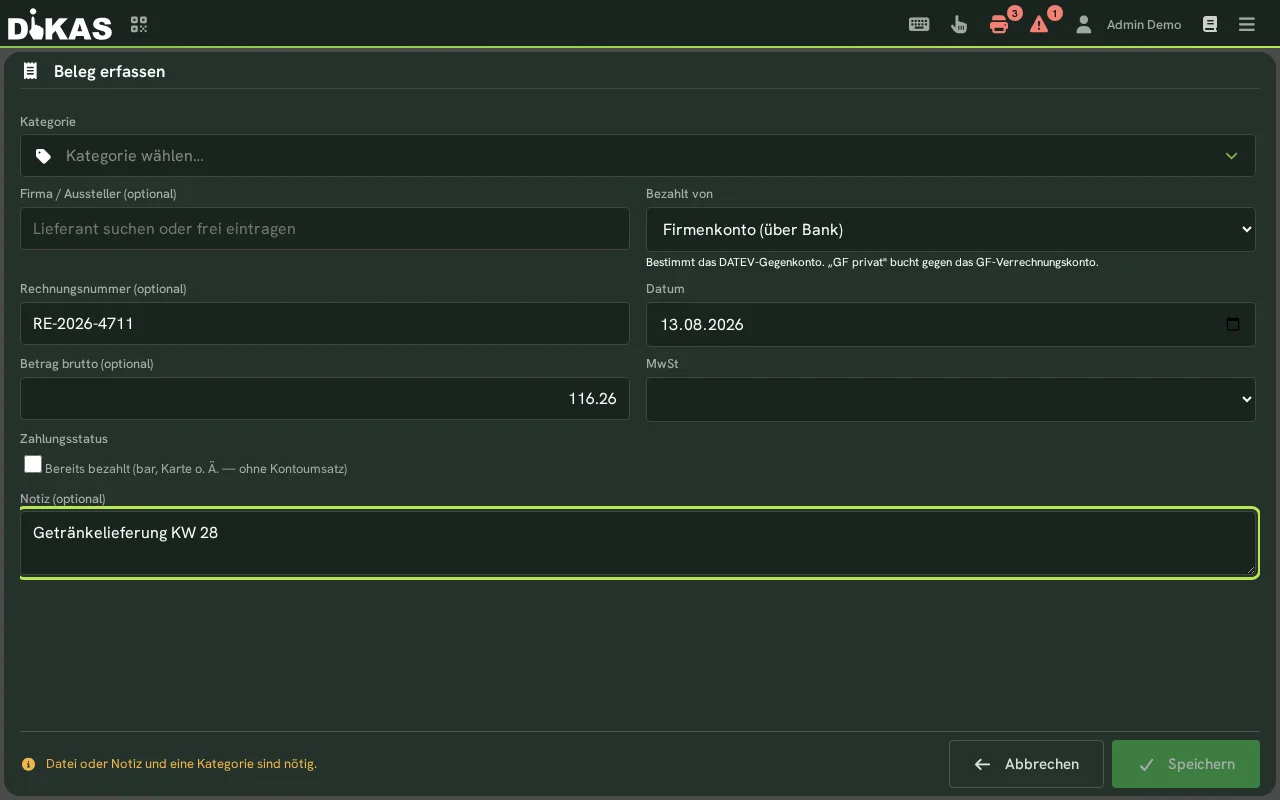
- Check the fields and correct or complete them if needed:
| Field | Description | Example |
|---|---|---|
| Category | Expense category for assignment (from your expense categories) | Beverage purchase |
| Company / Issuer | Who issued the invoice? | Getränke Müller GmbH |
| Invoice number | Number on the invoice | INV-2026-4711 |
| Date | Receipt date (pre-filled with today, editable) | 10.07.2026 |
| Amount | Gross amount of the invoice (optional) | 248.50 |
| Tax | Tax amount shown on the receipt (optional) | 39.67 |
| Tax rate % | Tax rate (optional) | 19 |
| Note | Free text for you and accounting (optional) | Beverage delivery week 28 |
- "Save" — the receipt appears in the overview
AI helps — you stay in control
After the photo or file selection, an AI reads the receipt and pre-fills only the fields that are still empty: company, invoice number, amount, tax, tax rate, and date. Anything you've already entered is not overwritten. And everything stays editable — recognition is a help, not a requirement. A quick glance to check is enough.
No internet? No problem
Without an internet connection, AI recognition is skipped — a notice appears, and you simply enter the values by hand. The photo is automatically shrunk and optimized so uploading stays quick even on slow Wi-Fi.
Duplicate protection
If you record a receipt with the same issuer and same invoice number a second time, DiKAS flags it as a possible duplicate. This keeps the beverage supplier's invoice from slipping into accounting twice — say, if the owner photographed it in the morning and the waitress finds it again in the evening.
Receipts or Expenses — What's the Difference?
Both are available in the POS menu, and both serve their own purpose:
| Expenses | Receipts | |
|---|---|---|
| Purpose | Document a cash movement in the register | File incoming invoices digitally |
| Cash register effect | Yes — cash balance changes, entry in the cash book | No — pure document storage |
| Typical case | Cash withdrawal for a purchase | Invoice paid by non-cash means |
Two examples from Curry Corner:
- The beverage supplier wants to be paid in cash from the register → this is an expense (the cash balance drops), and there you attach the receipt photo directly to the expense.
- The weekly shopping trip to the wholesaler is paid with the business's debit card → the cash drawer stays untouched. Here you record the receipt under Receipts, so it's documented for accounting.
Quick rule of thumb: Money out of the drawer = expense. Only the paper matters = receipt.
Archive and locked receipts
Next to the receipt list, Finance → Expenses has the sub-tab "Archiv" (archive) for looking things up: search by issuer, invoice number or note, period von/bis (from/to), category and the choice "Alle Belege" / "Nur festgeschriebene" / "Nur offene" (all / only locked / only open). Clicking a row expands the details; the paper clip opens the attachment directly.
Receipts marked with the lock "festgeschrieben" (locked) have been handed over to accounting with the export. For them amount, receipt date, tax, category and payment source can no longer be changed, and the receipt cannot be deleted. Note, attachment and supplier remain editable. There is deliberately no correction route in the program — the message then refers you to your accountant. As long as no export has run yet, receipts dated before 01.09.2026 count as locked.
Retention
All recorded receipts are archived digitally. For the meeting with your tax advisor or a tax audit, you have every receipt at hand — no flipping through folders, no faded thermal-paper receipts.
Next Steps
- Recording Expenses — cash withdrawals and money movements with a cash book effect
- End-of-Day Report — closing out the business day correctly
- DATEV Export — handing accounting data over to the tax advisor