Delivery Service
The delivery service lets you manage order and delivery jobs directly in the POS — from order intake through kitchen preparation to route optimization and driver management. Online orders from your own online shop and from delivery platforms (Lieferando, Wolt, Uber Eats, GloriaFood) are imported automatically and fed into the same workflow.
Feature Overview
| Feature | Description |
|---|---|
| Order Intake | Phone, POS, or online platform |
| Pickup & Delivery | Two order types with their own workflow |
| Delivery Zones | Postal code and distance-based fee calculation |
| Kitchen Integration | Orders appear automatically on the kitchen display |
| Driver Management | Assign drivers, optimize routes, hand over the route as text + maps link |
| Online Orders | Online ordering portal, GloriaFood webhook |
| Delivery Platforms | Lieferando, Wolt & Uber Eats: import, accept/reject, status feedback |
| Payment | Before or after delivery, cash/card/online |
| Route Optimization | Automatic tour planning (Valhalla) |
Activation
- Admin → Settings → Operations → Enable delivery service
- Configure delivery zones (see below; where the settings are depends on your modules — see Configuration)
- Optional: set up the GloriaFood integration
After activation, the delivery service appears in the POS menu.
Two Order Types
| Type | Description | Workflow |
|---|---|---|
| Pickup | Customer orders and picks up | Confirmed → Preparing → Ready → Completed |
| Delivery | Order is delivered to the customer | Confirmed → Preparing → Ready → En Route → Completed |
For pickups, the "En Route" step is omitted — the order is completed as soon as the customer has received it.
Taking an Order
Phone Intake (Phone Mode)
There is a dedicated view for taking orders by phone: the menu tile "Telefonannahme", the phone button in the POS, or "Annehmen" in the call pop-up (if caller recognition is set up). It is the same POS in three columns:
- Left — caller: search field with focus (from three digits on, matches appear; the numeric keypad is enough); unknown number → "Neuer Kunde" with the number pre-filled, only name and address (with address completion, plus floor, doorbell and delivery note); the customer's delivery addresses to tap. Below that, the customer's last 5 orders (delivery jobs and online orders) — with ⊕ per item or "alles ⊕" into the basket, checked against today's menu (delisted articles greyed out, "derzeit aus" blocked, current price).
- Middle — articles: the familiar article grid with groups as tabs.
- Right — basket and checkout: order type, desired-time chips (immediately / +30 / +45 / at …), expected time, zone and delivery fee from the address, minimum-order-value hint, payment chips (cash · card at the door · already paid), remark. "Vorlesen" shows the order large in announcement order, "Aufgeben" creates the job with kitchen tickets.
By Phone via Direct Sale
Alternatively, order entry runs in Direct Sale via the customer dialog:
- POS → Direct Sale → "Kunde" button (person icon in the footer bar)
- In the tab "Kundenauswahl", search for the customer (phone number or name) or create one via "Neuer Kunde"
- Switch to the tab "Abholung / Lieferung" and choose the order type: Lokal, Abholung or Lieferung
- For delivery: check/enter the delivery address (pre-filled from the customer master data and geocoded automatically — the determined coordinates are shown below the address)
- Optionally enter a desired time (quick choice +15/+30/+45/+60 minutes) and notes (e.g. "doorbell broken — please call")
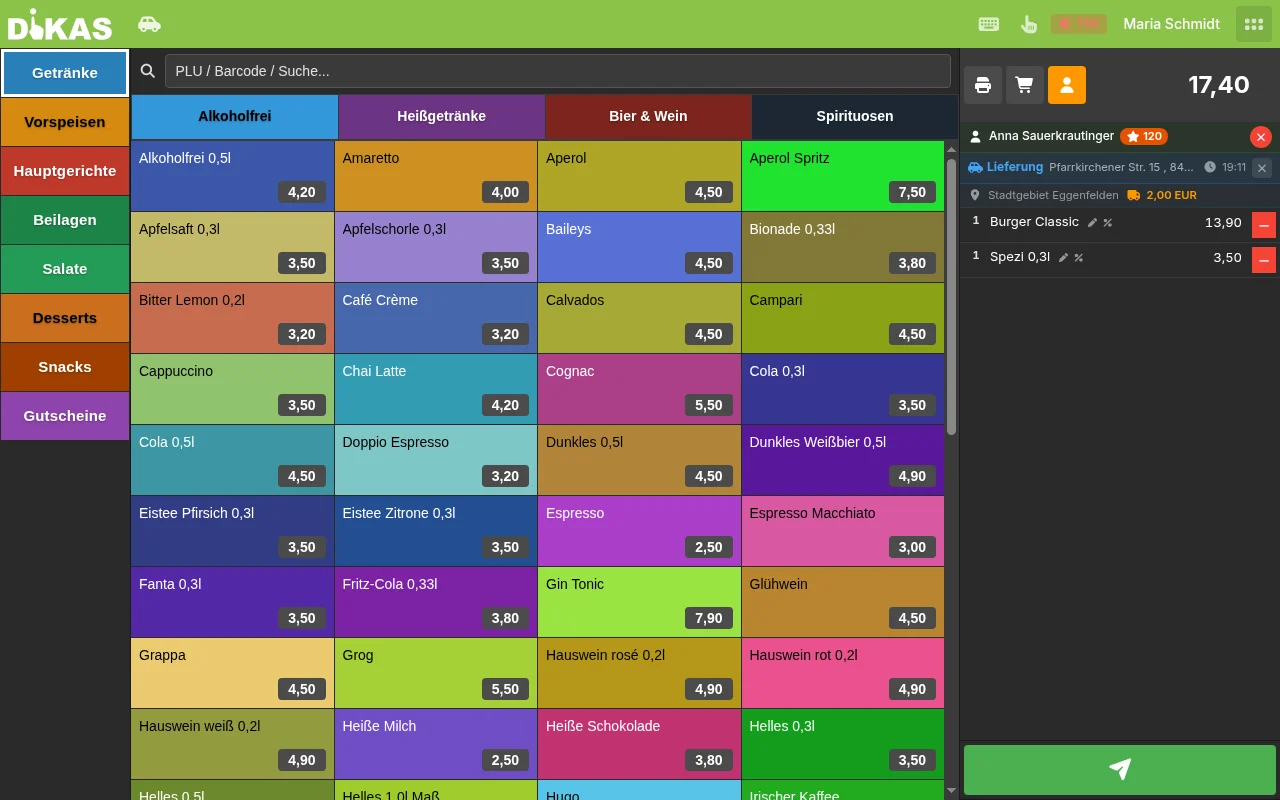
- Confirm with OK — the POS now shows a delivery banner with address, desired time and the determined delivery zone including delivery fee
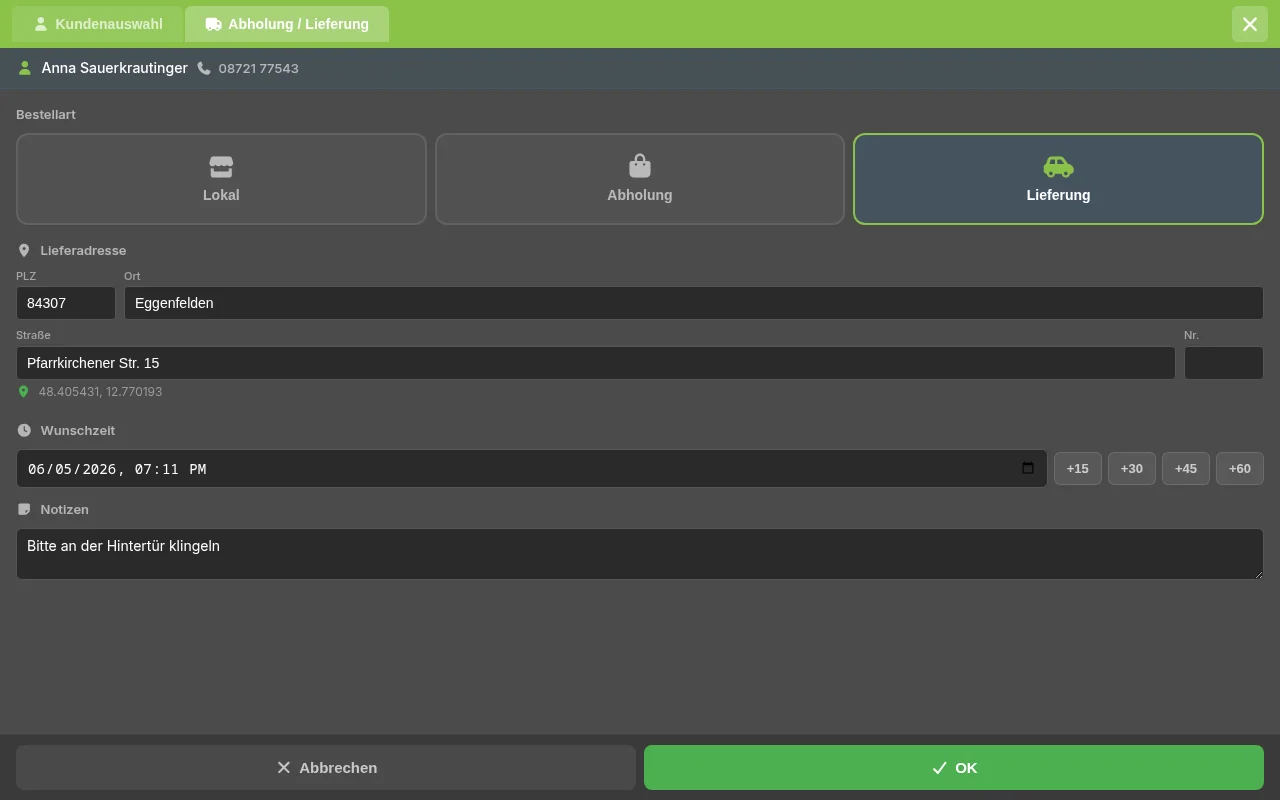
Customer data at a glance:
| Field | Description | Required? |
|---|---|---|
| Name | Customer name | Yes |
| Phone | Phone number | Recommended |
| Street + No. | Delivery address | Delivery only |
| Postal Code / City | Postal code and city | Delivery only |
| Desired Time | Requested delivery/pickup time | No |
| Floor / Doorbell / Delivery note | Delivery details, stored with the customer address and with each delivery address; the driver sees them on their stop card | No |
| Remark | Special requests | No |
- Select articles — as in a normal sale
- Delivery fee is calculated automatically (from the delivery zone) and added to the total
- Tap the total button at the bottom right → the order is created, receives its order number (e.g. #100) and the kitchen tickets are created. The order appears in the delivery service tab "Bestätigt".
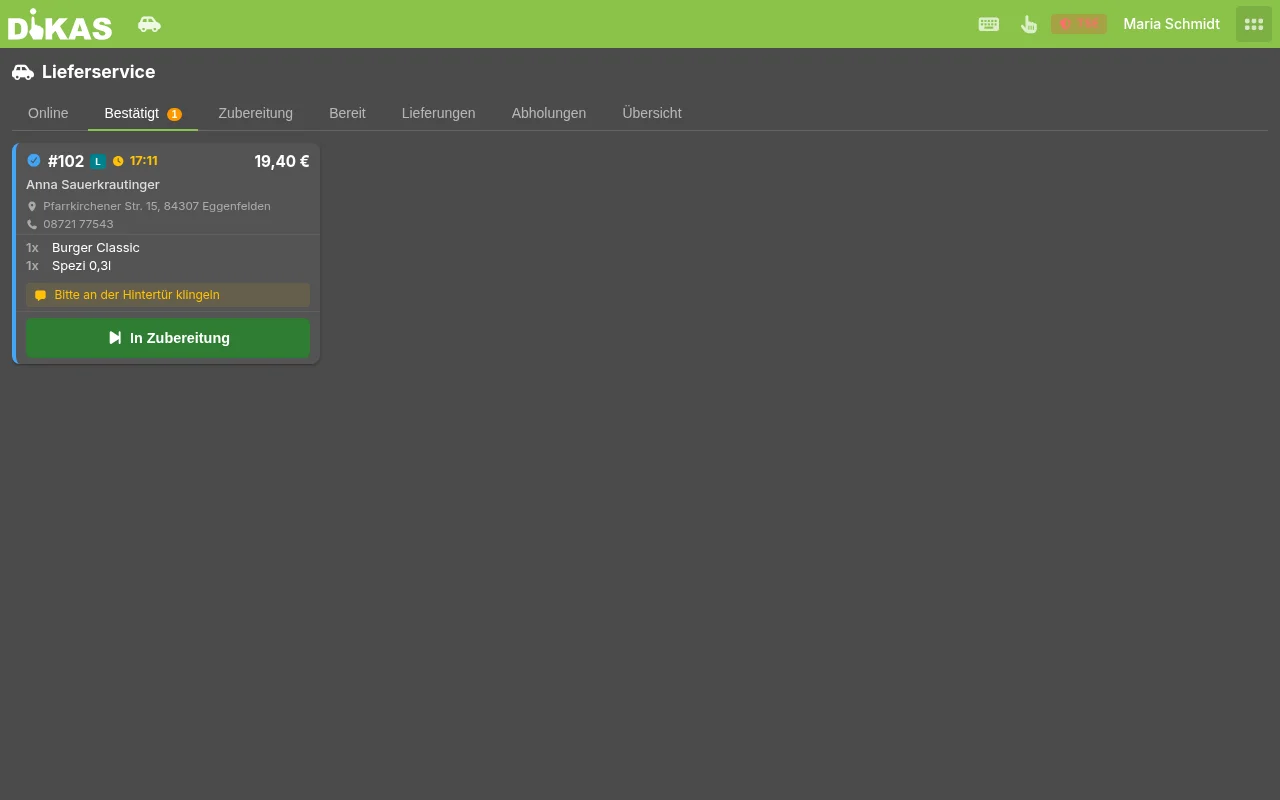
💡 Prepayment: If the customer should pay immediately (e.g. pickup with card payment), tap "Bezahlen" instead and choose the payment method — the order is then created directly as paid.
Automatic Address Processing
When entering the delivery address, the following happens in the background:
- Geocoding: Address is converted to GPS coordinates via the DiKAS address service (addresses in Germany; for addresses in other countries see the note below)
- Zone assignment: Matching delivery zone is determined (postal code or distance)
- Delivery fee: Automatically calculated from the zone
- Cardinal direction: Determined for route grouping (N, NE, E, SE, S, SW, W, NW)
⚠️ Address cannot be geocoded: If an entered delivery address cannot be converted into coordinates, the POS shows a warning. The distance-based delivery fee and route optimization may then not be available for that address. Assignment via the postal code zone still works — in that case check or correct the address, or set the delivery fee manually.
Order Number
Each order receives a daily sequential number (starting at 100) that resets daily. This way, kitchen and drivers can quickly identify orders:
📍 Delivery Zones
Delivery zones define where you deliver, what it costs, and what minimum order value applies.
Creating a Zone
Admin → Online-/QR-Einstellungen → tab "Bestellung" → "Lieferzonen & Gebühren" → Lieferzonen
| Field | Description | Example |
|---|---|---|
| Name | Zone name | "City Center" |
| Postal Code List | Postal codes in this zone | 80331, 80333, 80335 |
| Distance | Max. distance in km (fallback if no postal code matches) | 5.0 |
| Delivery Fee | Delivery cost | 3.50 € |
| Minimum Order Value | Minimum for the order | 15.00 € |
| Cardinal Direction | For route grouping | NE |
Example: 3 Delivery Zones
| Zone | Postal Codes | Distance | Fee | Minimum Order |
|---|---|---|---|---|
| City Center | 80331–80339 | 3 km | 2.00 € | 10.00 € |
| City Area | 80469, 80538, 80634 | 7 km | 4.00 € | 20.00 € |
| Suburbs | 85521, 85622 | 15 km | 7.00 € | 30.00 € |
Zone Assignment (Two-Step Logic)
DiKAS determines the matching delivery zone in two steps:
- Postal code match (preferred): If the customer's postal code is listed in a zone, that zone is used
- Distance calculation (fallback): If no postal code match → calculate driving distance (Valhalla routing or straight-line as fallback) → use the first zone whose distance is sufficient
Free Delivery
Via the field "Kostenfreie Lieferung ab" (in the delivery service settings), you can define a threshold above which the delivery fee is waived:
Order value:     25.00 €
Delivery fee:     4.00 €  (Zone: City Area)
Threshold:       30.00 €  (free delivery from)

→ Delivery fee is charged (25 € < 30 €)
→ Total amount: 29.00 €

---

Order value:     35.00 €
Threshold:       30.00 €

→ Delivery fee waived (35 € ≥ 30 €)
→ Total amount: 35.00 €
Minimum Order Surcharge
If the order value is below the minimum order value for the zone, a surcharge is automatically calculated:
Order value:          12.00 €
Minimum order value:  15.00 €  (Zone: City Center)

→ Surcharge:           3.00 €  (difference)
→ On the receipt: "Minimum order surcharge  3.00 €"
The surcharge appears as a separate line item on the receipt (system article art_mindestbestellwert).
💡 Block instead: With the setting "Unter Mindestbestellwert blockieren" (Admin → Online-/QR-Einstellungen → tab "Bestellung" → "Lieferzonen & Gebühren" → Lieferzonen), an order below the minimum order value is rejected completely (error message with zone and difference) instead of being topped up with a surcharge.
Workflow (Status System)
Each order goes through a configurable workflow. By default it is deliberately kept lean — the actual kitchen work is already reflected by the kitchen display via the order tickets:
The intermediate steps "Preparing" and "Ready" are optional and can be enabled individually in the settings (see Configurable Workflow Steps). If you want the full process, enable them and you get the following workflows:
Full Workflow (Delivery)
Shortened Workflow (Pickup)
Status Overview
| Status | Value | Color | Description |
|---|---|---|---|
| Pending | 0 | Gray | Order received, not yet confirmed |
| Confirmed | 1 | Blue | Order accepted |
| Preparing | 2 | Orange | Kitchen is preparing (visible on the kitchen display) |
| Ready | 3 | Green | Finished preparing, waiting for pickup/driver |
| En Route | 4 | Purple | Driver is on the way to the customer (delivery only) |
| Completed | 5 | Dark green | Delivered/picked up |
| Cancelled | 6 | Red | Order cancelled |
Configurable Workflow Steps
Under Admin → Online-/QR-Einstellungen → tab "Bestellung" → "Lieferzonen & Gebühren" → Workflow-Schritte, the intermediate steps can be enabled or disabled individually:
| Setting | Default | Description |
|---|---|---|
| Bestätigung verwenden (use confirmation) | Yes | Orders are accepted first before the kitchen tickets are created (recommended) |
| In Zubereitung verwenden (use preparation) | No | Optional "Preparing" intermediate step; off when the kitchen display already reflects the work status |
| Bereit verwenden (use ready) | No | Optional "Ready" intermediate step before handing over to the driver |
Default: Only "confirmation" is active → Pending → Confirmed → Completed. If you enable "Preparing" and "Ready", the corresponding workflow tabs and statuses appear again.
Cancellation
An order can be cancelled at any time — except when it is already marked as "Completed". Cancelled orders are marked with status 6 (Cancelled).
💡 Cancelling an already invoiced order: If a cash receipt was already created for the driver at dispatch, this receipt is cancelled automatically (cancellation receipt) when the order is cancelled. No orphaned receipt remains in your accounting.
💡 Cancelling a paid online order: If an order paid via the online shop (Stripe/PayPal) is cancelled in the delivery service, DiKAS automatically refunds the amount, sends the guest a rejection email and sets the online order to "Rejected".
🍳 Kitchen Integration
For delivery orders taken at the POS (Direct Sale delivery mode), the kitchen tickets (OpenBons) are created immediately when the order is created:
- DiKAS creates a virtual table for the order (e.g. "Delivery #101")
- An OpenBon is created for each ordered article
- The OpenBons appear on the kitchen display (tab "Lieferservice") — just like regular table orders
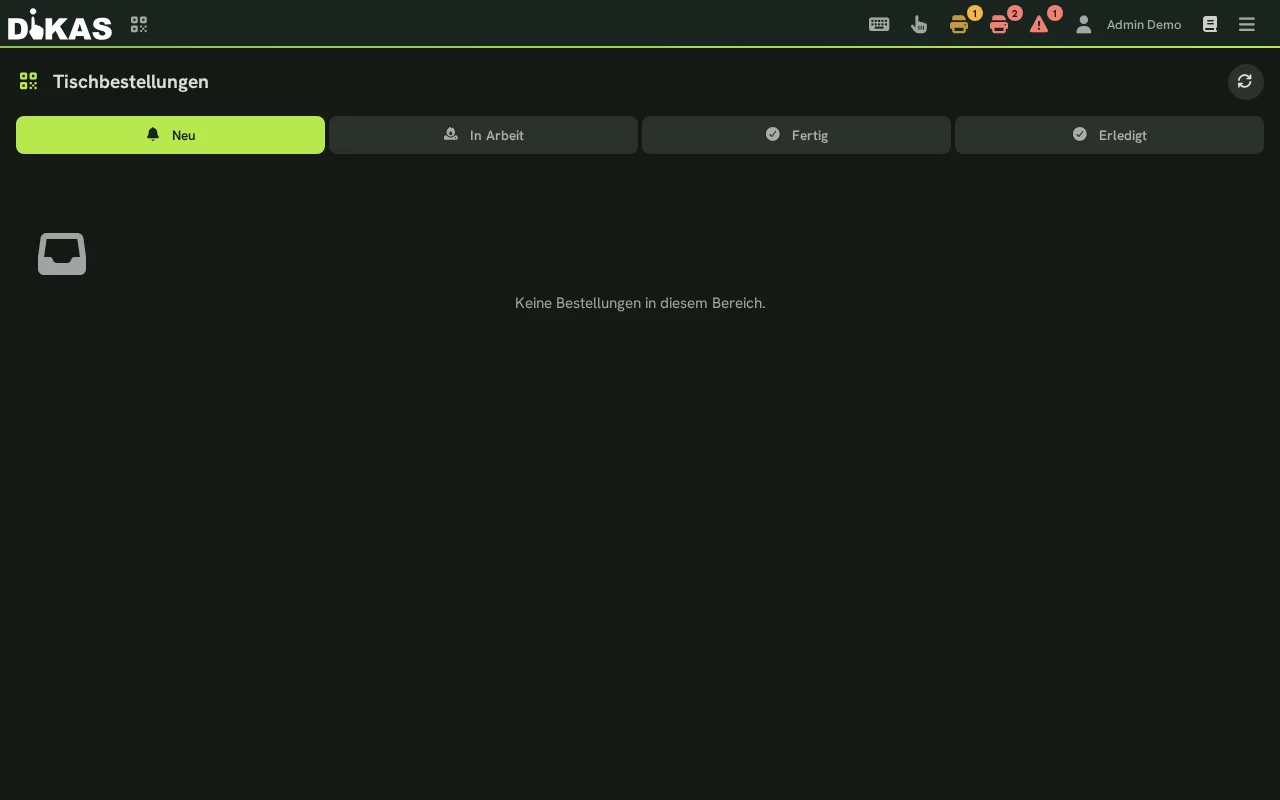
- The kitchen marks the order there as "Fertig" (tickets processed). Service staff then set the status "Ready" in the delivery service tab "Zubereitung" using the "Bereit" button
For online/GloriaFood orders, the kitchen tickets are created on confirmation (acceptance) in the Online tab: as soon as an employee confirms the incoming online order (or automatic confirmation is active), the kitchen tickets are created and the order appears on the kitchen display. Direct Sale deliveries from the POS, by contrast, create the tickets immediately when the order is created.
Kitchen Display:
┌───────────────┐  ┌───────────────┐  ┌───────────────┐
│ Table 5       │  │ Delivery #101 │  │ Pickup #102   │
│ 18:45         │  │ 18:50         │  │ 18:52         │
│───────────────│  │───────────────│  │───────────────│
│ 2× Schnitzel  │  │ 1× Pizza Sal. │  │ 2× Burger     │
│ 1× Lasagna    │  │ 2× Pasta      │  │ 1× Fries      │
│               │  │ 1× Tiramisu   │  │               │
│ [Done]        │  │ [Done]        │  │ [Done]        │
└───────────────┘  └───────────────┘  └───────────────┘
Address on kitchen ticket: If "Adresse auf Bon drucken" is enabled in the delivery service settings, the customer address is printed on the kitchen ticket as well.
🚗 Driver Management
Assigning a Driver
- The order has status "Ready" and appears in the tab "Lieferungen" (grouped by cardinal direction)
- Employees with the staff permission "Fahrer (Lieferservice)" appear automatically in the driver list; via "Fahrer" (top) you bring in someone additionally for the day — e.g. the boss filling in, or a team member who was taken off duty earlier via "x"
- Select orders via checkbox
- Tap "n an [Fahrer]" (dispatch) → orders are assigned to the driver, unpaid ones are automatically invoiced as a cash receipt to the driver, status changes to "En Route"
Several orders can be assigned to one driver at the same time — ideal for batch tours.
The selection only shows who may actually drive
Under "Fahrer", only employees who have the checkmark "Fahrer (Lieferservice)" are listed (administrator and manager always), and who are not deactivated. Anyone without the checkmark can therefore not even be brought into the driver list — instead of being refused the tour later at dispatch.
If nobody is left, the list tells you why:
"Niemand verfügbar. Fahren darf nur, wer unter Admin → Personal → Rechte das Häkchen 'Fahrer (Lieferservice)' trägt — sonst weist die Ausgabe die Tour ab." (Nobody available. Only employees with the checkmark "Fahrer (Lieferservice)" under Admin → Personal → Rechte may drive — otherwise dispatch rejects the tour.)
Remedy: under Admin → Personal → Rechte set the checkmark "Fahrer (Lieferservice)". It takes effect immediately, even in a running session.
Why the checkmark matters here
The unpaid jobs of a tour are booked as cash receipts in exactly this driver's register. They must therefore not end up with someone who is not driving a tour at all — dispatching without the permission is aborted with "Dafür fehlt die Berechtigung."
Route Optimization
When multiple orders are ready, DiKAS can calculate the optimal route:
- Select orders (checkboxes)
- Click "Route optimieren"
- DiKAS calculates the shortest tour across all addresses (Traveling Salesman algorithm via Valhalla)
- Result: optimized sequence with total distance and estimated drive time
Optimized Route:
  Start: Restaurant (Marktplatz 1)
  1. #101 – Müller, Hauptstr. 12      (1.2 km, 4 min)
  2. #104 – Weber, Gartenweg 5        (2.8 km, 7 min)
  3. #103 – Schmidt, Berliner Str. 22  (4.1 km, 10 min)
  → Return to restaurant              (3.5 km, 8 min)

  Total distance: 11.6 km
  Estimated drive time: 29 min
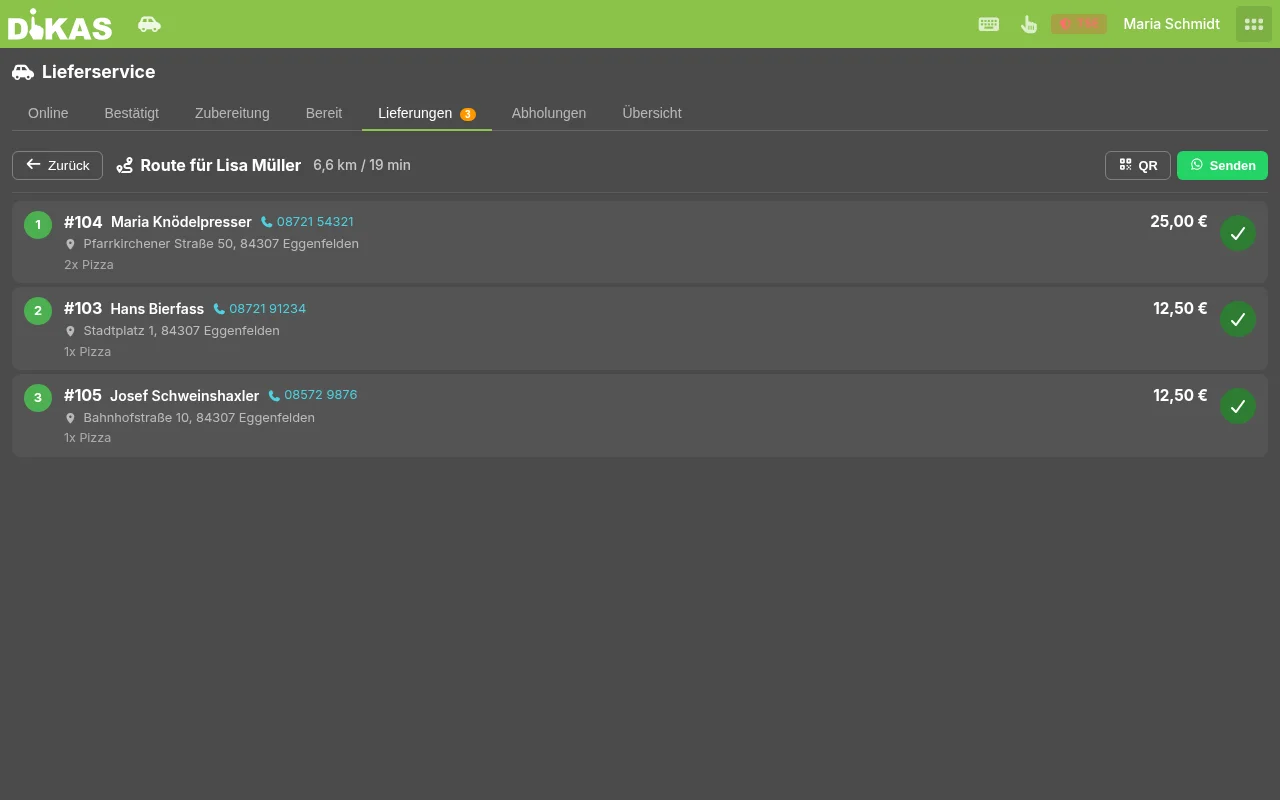
Sending the Route to the Driver
The optimized route can be passed directly to the driver:
No automatic sending
DiKAS does not send the route itself. The function provides the finished message text and the Google Maps link — you pass it on to the driver (copy and paste it into your messenger, have the QR code scanned, or print it). Clicking "Senden" sends nothing.
| Method | Description |
|---|---|
| Message + maps link | Show and copy the finished text with a Google Maps link — handed on by hand via messenger |
| QR Code | Display QR code with Google Maps URL (driver scans with phone) |
| Print the route on a receipt |
Configuring Route Optimization
Admin → Online-/QR-Einstellungen → tab "Bestellung" → "Lieferzonen & Gebühren" → Routenoptimierung
| Field | Description |
|---|---|
| Aktiviert (enabled) | Enable/disable route optimization |
| Start-Koordinaten (start coordinates) | GPS position of the restaurant (latitude/longitude) |
| Routing-Server URL (Valhalla) | URL of the Valhalla routing server. Leave empty to use the default server |
Driver Screen on the Phone
Drivers work on their own smartphone in the driver screen (can be launched like an app via "Add to Home Screen"). It shows:
- "Take along" panel at the top: tour suggestion from the orders reserved for the driver and the free ready orders, with a bag checklist per stop — only when every selected stop is ticked off does the tour start with one tap. There is no separate "start driving": an order only goes on tour via take along ("Mitnehmen").
- One card per stop in tour order ("Stop 2 of 4 · 6 min"): address in large type, floor/doorbell/delivery note, bag contents with count and options, desired time, "from 18 — check ID", the guest's remark and the money, large and colored (PAID green · "€24.50 cash" yellow · card blue).
- Thumb-sized buttons: Navigate (maps app; "whole tour" opens all open stops as a route), Call, "I'll be there in 5 min" (triggers the push message to the guest), Collect payment, Problem.
- Handover = collecting payment: payment method, tip and a change calculator (quick amounts "exact/50/100/200", change in large type). Cash as booked at take-along → just "done". Card at the door or tip → the cash receipt is cancelled and re-booked in the driver's float with the real payment method. Orders paid online are only "handed over". The handover is the only way to "Done".
- Problem at a stop: "nobody there", "wrong address", "something missing" — the order stays open, dispatch gets an alarm. For "nobody there" a 2-minute timer with a call button runs; after that the report is sent automatically.
- Free orders at the bottom: "Annehmen" (accept) reserves a ready order for this driver.
- Offline buffer: handover, problem and "I'll be there in 5 min" are first saved on the phone and then sent — in a dead zone they follow as soon as the network is back.
Dispatch Board (Wall Tablet or TV)
Menu tile "Dispositions-Tafel": one screen, three columns In kitchen · Ready · En route. One tour row per driver with the stop chain (✓ / ▶ / open) and return time, below it "in the shop: Tom, waiting 6 min". The header summarizes ("4 in kitchen · 3 ready · 2 en route · next driver back in ~4 min · ⚠ 1 problem"), alarms appear at the top with a sound (driver problems, overdue orders). Cards change color by waiting time (kitchen from order time, shelf from "Ready" — the color times from the configuration). A direction abbreviation (N/NE/E …) shows where an order is going. Tap a card → tap a driver reserves the order, "Mitgeben" starts the tour for the reserved orders.
Location During the Tour (Optional, Data Protection)
With "Standort während der Tour" (Admin → Lieferservice, off by default), the driver screen sends the position every 30 seconds — only between take-along and the end of the tour. The board then shows live remaining times and a small, collapsible map with the driver dots, the guest sees "n stops away — about m min to go" on their status page, and the tour ends by itself when the driver, on the way back, comes within the radius of the shop (default 150 m, adjustable).
No tracking
Positions are kept only in working memory (at most 15 minutes) — there is no history, no file and no evaluation. On first start the driver sees a data protection notice (purpose, duration, no storage) and only sends after confirming it; a location icon in the header shows while sending is active. If they refuse the browser permission, the tour simply continues as normal.
Dispatch (Batch Delivery)
The dispatch process bundles multiple orders for a driver:
- Select orders that are ready
- Assign driver
- Click "Dispatch"
- DiKAS automatically performs the following steps:
| Step | Description |
|---|---|
| Assign driver | Assign all selected orders to the driver |
| Invoice unpaid orders | A POS receipt is created for each unpaid order |
| Update status | All orders → "En Route" |
| Check open stops | If the driver still has stops "En Route" that are not part of the new tour, DiKAS asks: "Noch Stopps unterwegs — #90 … Neue Tour trotzdem starten?" (Stops still en route — #90 … Start new tour anyway?). Open stops are not completed automatically; they stay "En Route" and are completed as before via the driver's handover or at the POS. The new tour only goes out after "Ja, Tour starten" (Yes, start tour) |
💡 Completing manually: Individual orders can be set to "Completed" at any time in the tab "Übersicht" via the complete button (checkmark) — e.g. when the driver is back and no new tour starts. Paid pickups are completed automatically when payment is collected.
⚠️ A new tour does not complete any open order — not even a paid one. A stop where nobody opened the door stays visibly "En Route" until it is handed over, completed at the POS or cancelled.
🔞 Age-Restricted Articles (Youth Protection)
If an article carries an age restriction (16 or 18), DiKAS does not let it be delivered until someone has confirmed the age. This applies exactly where it matters: at batch dispatch.
What happens:
- You assign an order with age-restricted articles to a driver.
- The order does not go out. It stays unchanged, the previous driver stays entered, and DiKAS reports the order back as an open age case.
- You confirm the required age level — only then is the order assigned and the receipt created.
The order does not disappear, it waits
A rejected age case is neither an error nor a loss: nothing is booked, nothing is assigned. If you click the message away, you will find the order unchanged in the list — it just does not go on the tour as long as nobody has confirmed.
The age restriction is set on the article (Mindestalter: none / 16 / 18) and is not tied to
any license module — it applies in every business, even without the delivery module.
The confirmation stays on the order. Whether the age was confirmed at order intake, at payment or at take-along — the highest confirmed level applies, and it stays on the order. If the driver collects payment at the door by card or with a tip and the original cash receipt is replaced in the process, DiKAS does not ask for the age again: the goods have already been handed over checked, and the re-booking is only the money booking that goes with it.
ℹ️ Added on 13.08.2026. This page previously did not describe youth protection at all, although the block has applied to batch dispatch since 07.08.2026.
Payment
Delivery service orders can be paid in two ways:
Payment Before Delivery (Prepayment)
- Take order
- "Bezahlen" → choose payment method (cash, card, online)
- POS receipt is created
- Order is paid → sent to the kitchen
Payment on Delivery (Cash on Delivery)
- Take order (without payment)
- Order is sent to the kitchen
- Driver delivers and collects payment from the customer
- At dispatch, the receipt is created automatically
- Or: subsequent payment via "Zahlung abschließen"
What Appears on the Receipt?
══════════════════════════════════════
  Delivery #101
  12.03.2026  19:30
──────────────────────────────────────
  1× Pizza Salami              8.90 €
  2× Pasta Carbonara          17.80 €
  1× Tiramisu                  5.50 €
  ────────────────────────────────────
  Subtotal                    32.20 €
  Delivery fee                 4.00 €
  ════════════════════════════════════
  Total                       36.20 €

  Paid: Cash
──────────────────────────────────────
  Müller, Hauptstr. 12
  80331 München
  Tel: 089 12345678
══════════════════════════════════════
The delivery fee appears as a separate line item (system article art_liefergebuehr, tax rate according to the setting "Liefergebühr-Steuer"). If a minimum order surcharge applies, it also appears as a line item. If the setting is proportional to the order and the order contains items with different tax rates, the delivery fee appears as one line per tax rate — see the next section.
Tax on the Delivery Fee
Under Admin → Online-/QR-Einstellungen → tab "Bestellung" → section "Lieferzonen & Gebühren", the field "Liefergebühr-Steuer" (delivery fee tax) defines which tax rate applies to the delivery fee and to a minimum order surcharge:
| Choice | Effect |
|---|---|
| Anteilig nach Bestellung (empfohlen) — proportional to the order (recommended) | The fee follows the order. Only food delivered → reduced rate. Mixed order → the fee is split across the tax rates in proportion to the item amounts and appears as a separate line per rate on the receipt. |
| Normal / Ermäßigt / Steuerfrei (normal / reduced / tax-free) | The whole fee is always booked at this one rate, regardless of what was ordered. |
How DiKAS calculates "proportional":
- Counted are all ordered food and drinks that carry a tax rate — after a discount with the discounted amount.
- Not counted are deposits, vouchers (sale and top-up), credit top-ups, tips and items without tax. They are not delivered goods.
- Rounding: each share is rounded to the cent; a rounding cent goes to the largest share. The shares always add up exactly to the delivery fee.
- Without goods carrying a tax rate (e.g. only a voucher is delivered), the standard rate applies.
- Receipt, tax breakdown, day-end closing and accounting export show the shares at their tax rate automatically — nothing else needs to be set up.
- This applies at the register, for drivers, for platform orders and for your own online shop.
Legal background (simplified): Delivery is an ancillary service to the sale of food and drinks and follows their tax treatment (Germany: section 3.10 of the VAT application decree; Austria: VAT guidelines 2000, para. 346 et seq.; Switzerland: art. 19(4) VAT Act).
Example (Germany, food 7 %, drinks 19 %): food for €20.00 and drinks for €9.60, delivery fee €3.50 → €3.50 × 20.00 / 29.60 = €2.36 at 7 % and €3.50 × 9.60 / 29.60 = €1.14 at 19 %, together exactly €3.50. In Austria (10 %/20 %) and Switzerland (2.6 %/8.1 %) the split is the same.
No tax advice
This is a simplified summary, not legal advice. Please agree the setting with your tax advisor — especially if you have used a fixed rate so far.
New and existing installations
New installations are preset to proportional to the order. Existing installations keep their previous setting until it is changed here. The change applies to all receipts from then on; receipts already created remain unchanged.
🌐 Online Orders
GloriaFood Integration
DiKAS can automatically import orders from GloriaFood (and similar platforms):
Setup:
1. Create a key for GloriaFood in DiKAS: Admin → Settings → System → API keys → "Neuer API-Key" (new API key), choose "Online-Bestellung" as "Zugriffstyp" (access type) and save. The key is shown in full only right after saving — copy it now. If the "API keys" tab is missing, switch the view mode to Expert.
2. In GloriaFood, enter the webhook address with this key at the end: https://[Server]/rest/extren/globalfood/[API key]
3. Only if GloriaFood should call the address without a key: in the delivery service settings, section "Druck & Anzeige", enable "GloriaFood ohne API-Key erlauben" (allow GloriaFood without API key). DiKAS then also accepts orders at https://[Server]/rest/extren/globalfood — without checking who sends them. Without this option, DiKAS rejects calls without a key or with an invalid key.
Process: 1. Customer orders via GloriaFood website/app 2. GloriaFood sends webhook to DiKAS 3. DiKAS automatically creates a delivery service order: - Articles are matched by name, article number, or barcode - Address is parsed and geocoded - Order type: Delivery (with address) or Pickup (without address) - Source: "GloriaFood" 4. Order appears in the Online tab of the delivery service 5. Employee confirms → order enters the workflow
Automatic confirmation: If "Automatically confirm online orders" is enabled, GloriaFood orders are sent directly to the kitchen without manual intervention.
Delivery Platforms: Lieferando, Wolt & Uber Eats
DiKAS integrates the three major delivery platforms directly: orders arrive as delivery orders, and acceptance/rejection as well as status changes (preparing, ready, cancellation) are automatically reported back to the platform.
Setup (per platform):
- Admin → Online-/QR-Einstellungen → tab "Bestellung" → "Lieferzonen & Gebühren", section "Lieferplattformen" (delivery platforms)
- Enable the platform and enter the credentials from the respective partner portal:
| Platform | Credentials | Webhook URL |
|---|---|---|
| Lieferando | Bearer token (POS API), restaurant ID, custom webhook secret | https://[Server]/api/v1/webhooks/lieferando/[webhook-secret] |
| Wolt | API key, venue ID, webhook secret (HMAC) | https://[Server]/api/v1/webhooks/wolt |
| Uber Eats | Environment, client ID and sign-in (client secret or key), store ID — see below | https://[Server]/api/v1/webhooks/ubereats |
Uber Eats in detail (the fields of this section are labelled in German in every language):
- „Umgebung" (environment): „Produktiv" (production) or „Sandbox" (Uber's test access).
- „Anmeldung" (sign-in): „Client-Secret" (the normal case: client ID + client secret) or „Schlüssel" (key) — then, instead of the client secret, „Privater Schlüssel (PEM)" (private key) and „Key-ID (kid)" from Uber's developer portal. A stored key is never shown again, only its fingerprint.
- Webhook secret: leave empty = the client secret is used. With sign-in by key it is mandatory.
-
Store ID: save first, then „Verbindung prüfen" (check connection; administrators only). The stores the account may see then appear as a selection list; the store ID can also be entered manually under „Erweitert" (advanced).
-
Copy the displayed webhook URL and register it in the platform's partner portal.
Partner access required
Credentials are only available as a contracted partner of the respective platform (Lieferando POS partner program, Wolt for Developers, Uber Eats Marketplace). Webhooks are secured via secret or HMAC signature — requests without a valid signature are rejected.
Flow:
- Order placed on the platform → webhook to DiKAS
- DiKAS imports the order as a delivery order:
- Articles are matched by name, article number, or barcode; unknown items are imported as manual-price items with the platform name and price (no item is lost)
- The delivery fee charged by the platform is taken over (no duplicate zone fee, no minimum-order surcharge)
- Source and platform order number are stored on the order (colored badge in the POS)
- Employee confirms in the Online tab → DiKAS sends Accept to the platform and creates the kitchen tickets; rejecting sends Reject
- Further status changes are reported automatically (e.g., "Ready" to Wolt/Uber Eats, cancellation to all)
- If the platform cancels the order (Wolt/Uber Eats), the local order is cancelled automatically
Auto-accept: With the "Auto-accept" option (per platform), incoming orders are confirmed immediately, reported to the platform, and sent to the kitchen — without manual intervention.
Platform courier: If the platform's courier delivers (Wolt "homedelivery", Uber "Delivery by Uber"), the order carries the note "platform courier delivers" — no own driver needs to be assigned; the order is done once marked "Ready"/handed over.
Your Own Web Shop or App
For your own web shop, DiKAS provides an interface through which articles and tables can be read and orders placed. It requires an API key (Admin → Settings → API keys); the description for your developer is under REST API.
POS View: Tabs
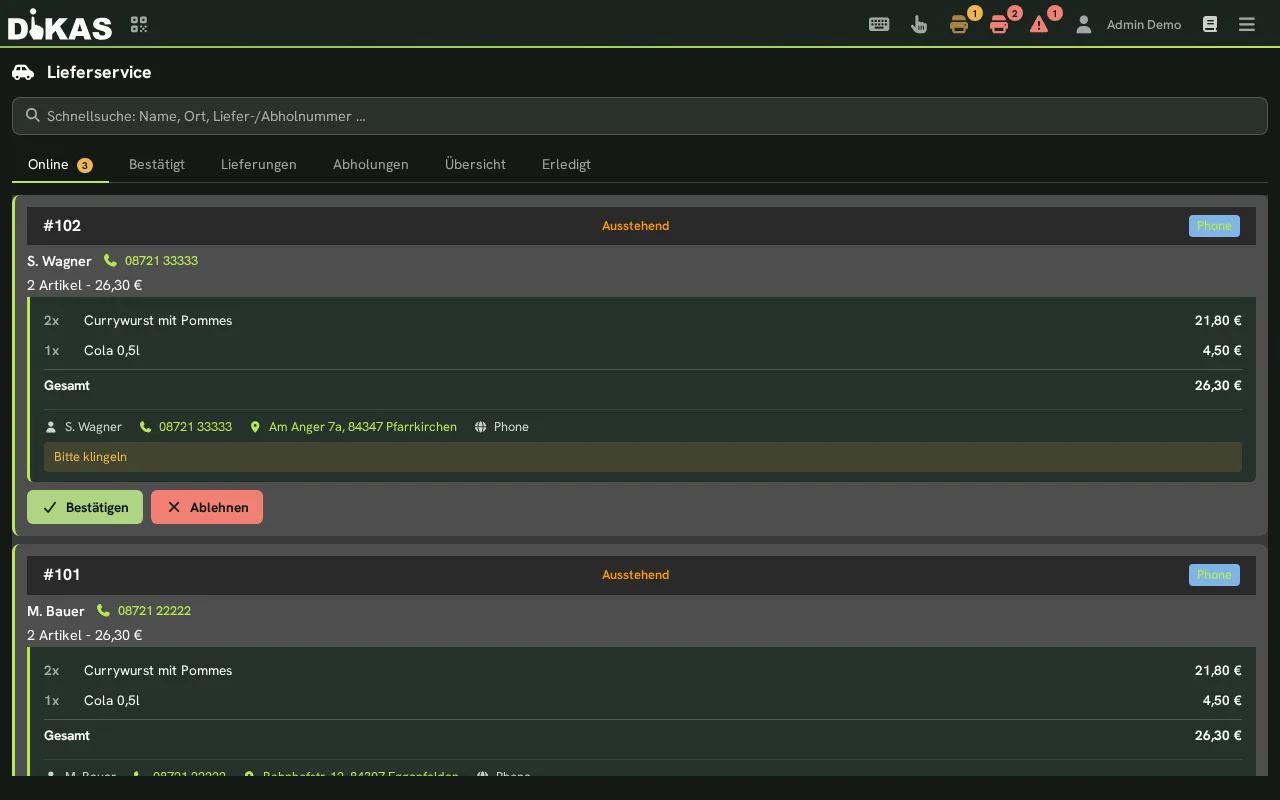
Depending on the enabled workflow steps, the delivery service in the POS (POS → Lieferservice) has up to eight tabs:
Online · Bestätigt · Zubereitung · Bereit · Lieferungen · Abholungen · Übersicht · Erledigt
The middle tabs (Bestätigt/Zubereitung/Bereit) only appear if the respective workflow step is enabled in the settings. A counter badge shows the number of open orders per tab.
Tab "Online"
Shows all incoming orders that have not yet been accepted — from your own online shop (pickup/delivery, self-service), from GloriaFood and from Lieferando/Wolt/Uber Eats. Orders from your own shop appear here immediately on submission (or after a successful online payment) — just like platform orders:
| Column | Description |
|---|---|
| No. | Order number |
| Customer | Name + phone |
| Type | Pickup / Delivery |
| Articles | Ordered articles |
| Amount | Total amount |
| Source | GloriaFood, web shop, etc. |
Actions: Confirm (→ to kitchen) or Cancel.
Tab 2: Delivery (Workflow)
The main work tab with status columns:
┌─────────────┬─────────────┬─────────────┬─────────────┬─────────────┐
│ Confirmed   │ Preparing   │   Ready     │  En Route   │ Completed   │
│     (1)     │     (2)     │     (3)     │     (4)     │     (5)     │
├─────────────┼─────────────┼─────────────┼─────────────┼─────────────┤
│ #101 Pizza  │ #100 Burger │ #098 Pasta  │ #095 Salad  │ #092        │
│ Müller      │ Weber       │ Schmidt     │ → Driver Tom│ ✓ 18:15     │
│ 19:30       │ 🔥 12 min   │ ✓ Ready     │ 🚗 5m ago   │             │
│             │             │             │             │             │
│ [→ Kitchen] │             │ [Assign]    │             │             │
└─────────────┴─────────────┴─────────────┴─────────────┴─────────────┘
Features: - Status change via click or drag & drop - Assign driver (when "Ready") - Optimize route (select multiple orders) - Dispatch (batch delivery to driver)
Tab 3: Overview
All orders grouped by cardinal direction — for quick orientation:
North (N)                    East (E)
  #101 Müller, Hauptstr.      #104 Weber, Gartenweg
  #103 Schmidt, Berliner      #107 Lang, Ostpark

South (S)                    West (W)
  #102 Fischer, Südring       #106 Braun, Weststr.
  #105 Meier, Schillerstr.
Tab "Erledigt" (Completed)
Lists today's completed orders — sorted in descending order (the most recently completed at the top). The cards are display-only (no more workflow buttons). An order only appears here once it has been set to "Completed" manually via the complete button — nothing moves here automatically.
Time-Based Color Coding
As with the kitchen display, orders are color-coded to highlight overdue items:
Kitchen (Preparation Time)
| Wait Time | Color | Default |
|---|---|---|
| On schedule | Green | < 15 min |
| Getting tight | Yellow | 15–30 min |
| Overdue | Red | > 30 min |
Packaging/Ready (Wait Time)
| Wait Time | Color | Default |
|---|---|---|
| On schedule | Green | < 15 min |
| Getting tight | Yellow | 15–30 min |
| Overdue | Red | > 45 min |
The thresholds can be adjusted under Admin → Online-/QR-Einstellungen → tab "Bestellung" → "Lieferzonen & Gebühren" → Farbzeiten Küche / Farbzeiten Verpackung.
Editing Orders
Changing Articles Afterwards
As long as an order has not been paid:
- Select the order → "Bearbeiten"
- The order is opened in the POS (with all items)
- Add, remove or change articles
- Save → kitchen tickets are updated
Voiding a Single Item
- Select the order → "Position stornieren"
- Select the item + enter a void reason
- The associated kitchen ticket is cancelled
- The total amount is recalculated
Reassigning a Driver
If a driver drops out or the tour needs to be re-planned:
- Select the order → "Fahrer umzuweisen"
- Choose the new driver
- Set the option "Bargeld bereits kassiert" (cash already collected) or leave it empty (see below)
- The order is assigned to the new driver
Option "Bargeld bereits kassiert": This checkbox controls what happens to an already created cash receipt:
| Option | Behavior | When to use |
|---|---|---|
| Not ticked (default) | The cash receipt is re-booked to the new driver | The new driver delivers and collects the cash from the customer |
| Ticked | The previous driver keeps the cash receipt and settles it themselves (no re-booking) | The previous driver has already received the money |
⚠️ Mind the settlement: In the standard case leave the option empty if the new driver still collects the money from the customer — the receipt then counts correctly in their settlement. Tick it if the original driver already has the cash — that way the receipt stays in their settlement and is not booked twice.
Configuration (Overview)
Admin → Online-/QR-Einstellungen → tab "Bestellung" → "Lieferzonen & Gebühren"
Where the delivery service settings are
The section "Lieferzonen & Gebühren" only appears if the Delivery service module is included in your license. The tab "Bestellung" only exists with the Online ordering module (enabled under Admin → Settings → Operations). Without online ordering — for example in the "Liefer & Abhol" package without this add-on module — the same settings are under Admin → Settings → Operations → Delivery service (view mode Expert). All path statements "Online-/QR-Einstellungen → tab "Bestellung" → Lieferzonen & Gebühren" on this page then mean this tab.
General
| Setting | Description | Default |
|---|---|---|
| Delivery service enabled | Enable/disable the module | Off |
| Standort während der Tour (location during the tour) | Driver position on the board and guest status page (see Location During the Tour) | Off |
| Umkreis des Ladens (m) (radius of the shop) | Distance from which the tour counts as ended on the way back | 150 |
| Pickup only | Disable delivery, allow pickup only | No |
| Default delivery time | Expected delivery time in minutes | 45 |
| Default pickup time | Expected pickup time in minutes | 15 |
| Free delivery from | Order value from which no delivery fee applies | 0 (disabled) |
| Liefergebühr-Steuer | How the delivery fee is taxed: proportional to the order or at a fixed rate (normal 19 % / reduced 7 % / tax-free) — see Tax on the Delivery Fee | Proportional to the order (new installations) |
Printing
| Setting | Description |
|---|---|
| Delivery printer | Default printer for delivery service tickets |
| Dispatch printer | Printer on which the driver receipt is printed at dispatch |
| Address on ticket | Print customer address on the kitchen ticket |
| Delivery time on invoice | Desired delivery time on the receipt |
| Barcode on ticket | Print barcode for scanning |
Workflow
| Setting | Description | Default |
|---|---|---|
| Use confirmation | Orders must be accepted first | Yes |
| Use preparation | Optional kitchen step in the workflow | No |
| Use ready | Optional "Ready" status before handover to the driver | No |
Online Orders
| Setting | Description |
|---|---|
| Confirm automatically | Online orders go directly to the kitchen |
| GloriaFood without API key | Accept webhooks without key validation |
| Online pre-check | Check orders before confirmation |
Delivery Platforms
| Setting | Description |
|---|---|
| Enabled (per platform) | Enable the Lieferando, Wolt or Uber Eats connection |
| Auto-accept | Immediately confirm incoming platform orders (Accept + kitchen tickets) |
| Credentials | Token/API key, restaurant/venue/store ID, webhook secret from the partner portal |
Postal Code Mode
| Setting | Description |
|---|---|
| Use postal codes | Zone assignment primarily via postal code |
| Assign zones by postal code | Assign the entered delivery address directly to a zone using the stored postal code lists |
Statistics
The delivery service tab shows live statistics:
| Metric | Description |
|---|---|
| Pending | Number of unconfirmed orders |
| Confirmed | Number of confirmed orders |
| Preparing | Orders in the kitchen |
| Ready | Finished orders, waiting for a driver |
| En Route | Orders with the driver |
| Completed | Orders completed today |
| Cancelled | Orders cancelled today |
Practical Examples
Pizzeria with Delivery Service
Situation: Pizzeria "Napoli" with 3 drivers, delivery radius 10 km.
Setup: - 3 delivery zones: City Center (3 km, €2), City Area (7 km, €4), Suburbs (10 km, €6) - Free delivery from €25 - Minimum order value: €12 - GloriaFood connected - Default delivery time: 40 min
Typical flow: 1. 18:30 — 3 online orders come in (GloriaFood) 2. 18:31 — Employee confirms all 3 → kitchen tickets are printed 3. 18:45 — 2 phone orders taken at the POS 4. 19:00 — Kitchen reports 4 orders as "Ready" 5. 19:02 — Driver Tom is assigned → optimize route 6. 19:03 — Optimized route: 4 stops, 8.5 km, ~22 min 7. 19:03 — Route shown as text + maps link and handed on to Tom 8. 19:05 — Tom departs (status: "En Route") 9. 19:25 — Tom delivers last order → all "Completed"
Restaurant with Pickup Only
Situation: Restaurant offers only pickup (no delivery service of its own).
Setup: - Delivery service enabled, "Pickup only" on - No delivery zones needed - Default pickup time: 20 min - GloriaFood for online orders
Flow: 1. Customer orders by phone → POS: New order → Pickup 2. Employee: "Your order #105 will be ready in about 20 minutes" 3. Kitchen prepares → "Ready" 4. Customer arrives → payment → "Completed"
Catering with Advance Orders
Situation: Catering service takes orders for the next day.
- Take order with desired time = tomorrow 12:00
- Order stays as "Confirmed" until the next day
- The next morning: kitchen starts preparing
- 11:45: Order "Ready" → assign driver → Dispatch
- 12:00: Delivery to customer
Integration from Outside
All delivery orders can also be read, created and advanced via the interface — see REST API.
Frequently Asked Questions
Can orders be taken for a later time? Yes. Enter the desired delivery/pickup time. The order stays in the system and can be passed to the kitchen in good time.
What happens with an address outside all delivery zones? DiKAS shows a warning. The order can still be taken — the delivery fee must then be set manually.
Can several drivers be on the road at the same time? Yes. Each driver has their own tour. Route optimization can be run for each driver separately.
Does the delivery service also work offline (Android app)? Yes, with limitations: orders can be taken and sent to the kitchen. Route optimization requires an internet connection to the Valhalla server.
How are online orders from GloriaFood matched? DiKAS tries to match the ordered articles automatically via name, article number or barcode. Unrecognized articles are inserted as a manual item.
Can I customize the order numbers? The numbers start at 100 every day and are assigned consecutively. The start number is reset automatically every day.
Next Step
→ Time Tracking — Record work hours via time clock